

An iPad's battery lasts 10 hours or more. Naturally, that time gets shorter as the device ages. Do you know what state your iPad's battery is in? We'll describe how to check both its current status and the battery's overall health, and add a few tips on how to extend the battery's lifespan.
Thanks to its larger dimensions, every tablet also has room for a bigger battery. But a tablet also has a bigger display, which is the biggest energy guzzler. Apple states that every iPad battery lasts up to 10 hours of browsing the web on Wi-Fi, watching video or listening to music, and up to 9 hours if you browse the web over your network provider's mobile data (if your model allows it). Doesn't your device last that long? Take a look at what state your battery is in.
How to check your iPad's battery status
- Go to Settings -> Battery and turn on the Battery Percentage option. This option shows the remaining percentage of charge in your iPad's status bar.
- In Settings you'll also find information about battery usage. That makes it easy to get a picture of how you use your tablet and which processes consume the most energy. You can track energy consumption not only for the past 24 hours; there's also the option of checking consumption over the last 10 days.
However, Battery Percentage in the device's settings only gives you an overview of the battery's current charge. It doesn't tell you how long your battery lasts, in other words what its health is. And unfortunately you can't even find that out on the device itself; you'll need third-party apps.
How to check your iPad's battery health
Battery health works with a calculation of the battery's condition based on charge cycles. Put simply, a charge cycle is the process in which the battery charges from 0% to its absolute maximum, i.e. 100%, and then runs back down to 0%.
Battery health indicates the percentage of its original capacity to which the battery can, at most, currently be charged. The number gradually falls from 100% lower and lower. If the maximum capacity drops below 80%, it's time to start thinking about replacing the battery. The device stays charged for considerably less time.
How do you find out the battery health? You'll need the CoconutBattery app and a Mac computer.
- On your macOS device, download the CoconutBattery app
- The app unpacks itself; move it to the Applications folder in the Finder and double-click to open it
- In the app you'll find an overview of your Mac's battery status. Connect the computer to your iPad with a cable and an overview of the connected iPad's battery status will appear as well
- Pay attention to the "Design Capacity" statistic.
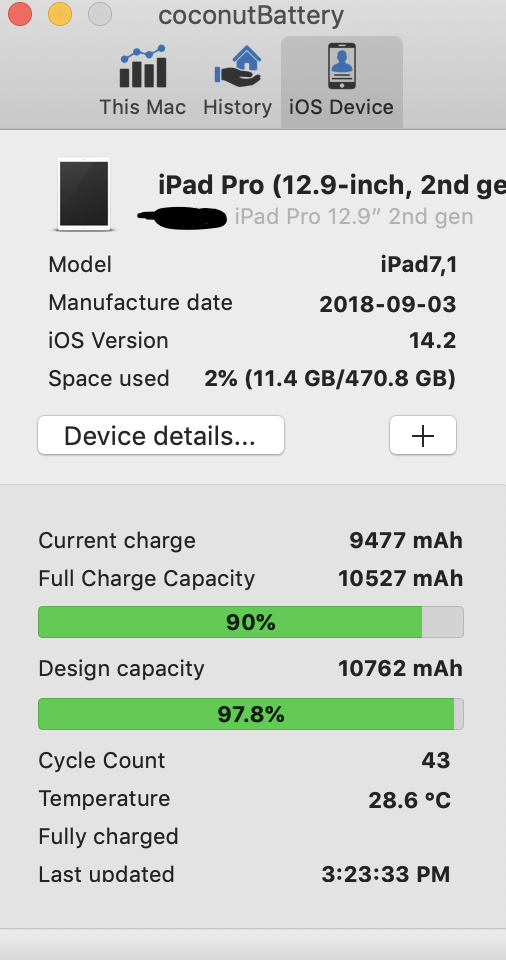
Is the Design Capacity graph green? Then the battery health is above 80% and your battery is still fine.
Is the graph red? The state of your battery is critical and your device is probably already switching itself off.
Is the graph yellow? Time to head to a repair shop for a battery replacement.
Is it time for a battery replacement? Come and see us! We're specialists in Apple products.
✆ 607 855 558
✉ info@appleguru.cz
Seifertova 683/83, Prague 3 - Žižkov
Tips for extending your iPad's battery lifespan
- Update to the latest operating system
- Optimise your settings - the biggest battery saver is dimming the brightness. The display draws the most energy from the battery.
- Turn off mobile data when you're not using it. If you have the option, use Wi-Fi, which saves both your data and your battery power. What's more, constantly switching between the network provider's networks also takes its toll on the battery.
- Turn on Low Power Mode on your iPad. It's included on all devices that have the iOS operating system in at least its ninth version. Your iPad alerts you when the battery charge level is falling to critical values. At the same time, it offers you the option of turning on Low Power Mode with a single tap. You can also turn it on in Settings -> Battery if you originally declined it. The mode lowers the display brightness, optimises the device's performance and cuts animations in the system to a minimum. Apps such as Mail stop downloading content in the background, and features such as AirDrop, iCloud sync and Continuity are turned off. As soon as you charge your iPad again, the mode turns off automatically. Don't expose your device to extreme temperatures in which its full functionality isn't guaranteed.
- If you know your iPad is going to be idle for a longer period, leave it only half charged.
- Don't charge your iPad in a hot environment
- Also, don't leave it exposed to direct sunlight for long periods. Extremely hot conditions harm the battery more than cold ones do. The ideal operating conditions are from 0 to 35 °C.