Is your iPhone or iPad not responding to touch? Is the picture wrong, or is nothing showing at all? It isn't necessarily a fault with the display. It may just be a software issue. Here you'll find what to try before you head to the repair shop.
Quick navigation:
Display not responding
Display sensitivity
Display too dark or too bright
The display isn't responding
If your device's display doesn't respond to any touch – it may even be impossible to turn the screen off – try force restarting the device. You always do this with a combination of buttons that work independently of the display. There are several combinations, depending on the type of device and whether it's an iPhone or an iPad, or indeed an iPod touch.
How to fix it
Display on iPhone 7, 7 Plus, iPod touch (7th generation):
Press and hold the side (or top) button together with the volume down button for at least 10 seconds, until the Apple logo appears. On even older iPhones and iPads with a Home button, you do this by holding the side (or top) button and the Home button below the display.
Display on iPhone 8 and later, iPad with Face ID:
Press and quickly release the volume up button. Then press and quickly release the volume down button. Then press and hold the side button until the Apple logo appears. The procedure is the same on iPads with Face ID, the only difference being that the button is on the top edge.
If the device still doesn't respond after this step, the fault is of a different kind and a specialist will need to take a look at the device.
iPhone or iPad display not responding? Come and see us! We're specialists in Apple products.
✆ 607 855 558
✉ info@appleguru.cz
Seifertova 683/83, Prague 3 - Žižkov
The display is too sensitive or responds intermittently
The iPhone or iPad display keeps freezing or, on the contrary, overreacts to the slightest touch.
How to fix it
STEP 1: check that the device's display is clean, free of dirt and water droplets. If you find that the display isn't responding simply because it's dirty, this kind of "repair" of the display on an iPhone, an iPad tablet or an iPod media player takes just a moment. All you need to do is take a lint-free microfibre cloth, dampen it slightly and wipe the display until it's dry.
STEP 2: if cleaning didn't help, disconnect all devices plugged into the Lightning connector, the USB-C connector or the 3.5mm headphone jack. The connected device or accessory may be exactly what's causing the problems. Try taking off the iPhone or iPad case as well. Perhaps it isn't fitted properly, is touching the display somewhere and is making it misbehave.
STEP 3: If you've done all of this and things still haven't improved, restart the device. And if you use a screen protector, such as tempered glass for iPhone and the like, this accessory can cause problems too. Removing it may get rid of the problems, but you probably won't be able to use it again.
If the problems persist even so, the fault lies somewhere else. Visit an iPhone repair shop, because repairing the display of an iPhone or other iOS device is, of course, a possible solution.
The display is too dark or too bright
If you're new to iOS, it can easily happen that your device's display ends up too dark or uncomfortably bright.
How to fix it
iPhone X and later or iPad with iOS 12: swipe down from the top-right corner of the display.
iPhone 8 and earlier: swipe up from the bottom edge of the display.
This is where you'll find the brightness slider. Drag it up or down to adjust the brightness easily.
You can do much the same under Settings - > Display & Brightness. Here you adjust the brightness by dragging left to lower it or right to raise it. You can also turn on True Tone here, a technology that uses multichannel sensors to adjust the colour and intensity of the display to match the ambient light, so that the picture looks more natural. Last but not least, you'll also find Night Shift here. In the evening and at night, it automatically shifts the colours of the display towards warmer tones that are easier on the eyes. Does that look unnatural to you? Then turn these options off.
Adjusting brightness in Settings:
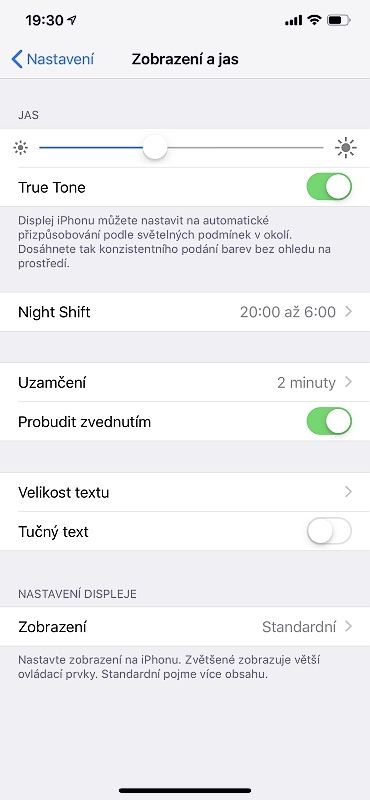
iOS devices have an ambient light sensor and can adjust the brightness according to the lighting conditions around you. The sensor lowers the brightness in the dark and raises it in bright light. This auto-brightness feature is on by default, so unless you've chosen otherwise, in theory you shouldn't need to set the brightness yourself at all. If you've turned it off by mistake, you can turn it back on under Settings -> General -> Accessibility -> Display Accommodations.
Icons too large on your iPhone:
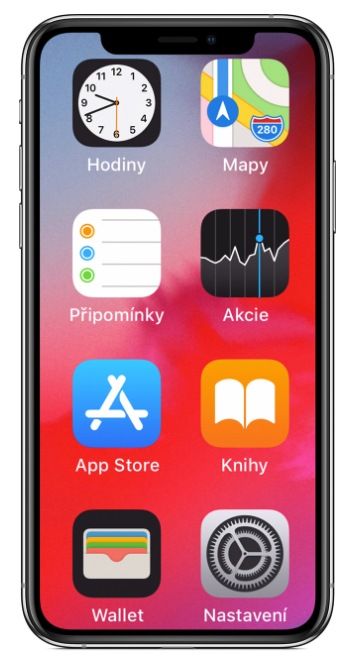
It can also easily happen that the icons on your Home Screen look uncomfortably large. You may have the Zoom feature turned on. You activate it by tapping the display with three fingers. The display then behaves differently from what you may be used to. So first of all, tap the display with three fingers again to zoom the picture back out, and preferably turn this feature off.
Just turn Zoom off and everything is back to normal:
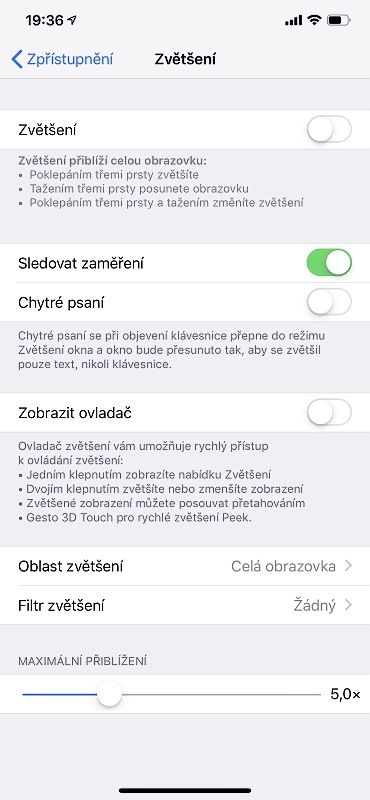
To do that, go to Settings -> General -> Accessibility -> Zoom and deselect the option so that its switch is no longer lit up green. If, on the other hand, you like this feature, you can fine-tune it here.
iPhone or iPad display not responding? Come and see us! We're specialists in Apple products.
✆ 607 855 558
✉ info@appleguru.cz
Seifertova 683/83, Prague 3 - Žižkov