Dark Mode was one of the features Apple users wanted most. How do you turn it on easily on your iPhone or Mac, and why use it in the first place? This article has the answers.
Quick navigation:
Why use Dark Mode
Setting it up on iPhone
Setting it up on Mac
Tips for advanced settings
Why use a dark display on your iPhone and Mac at all?
- it's easier on your eyes - they don't have to focus so hard on a bright background and are under less strain
- it saves up to 30% of battery capacity - this mainly applies to OLED displays, found on the iPhone X, XS, XS Max, 11 Pro, 11 Pro Max and later (the actual figure will of course vary depending on how you use your device).
- a dramatic look, which many users prefer
- it helps you concentrate on your work - something Mac users appreciate in particular
- easier to use in poor light - this mainly applies to iPhones
How to turn on Dark Mode on iPhone
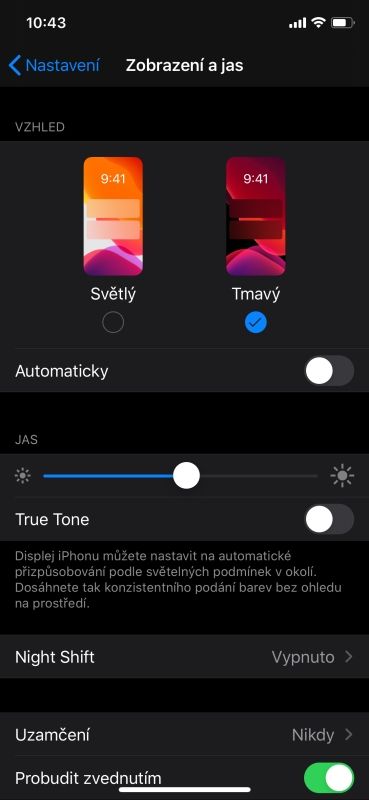
- Open Settings and tap Display & Brightness.
- Turn Dark Mode on by selecting Dark.
You can also get to Dark Mode from Control Centre. Open Control Centre and tap the Dark Mode button to turn it on or off.
How to turn on Dark Mode on Mac
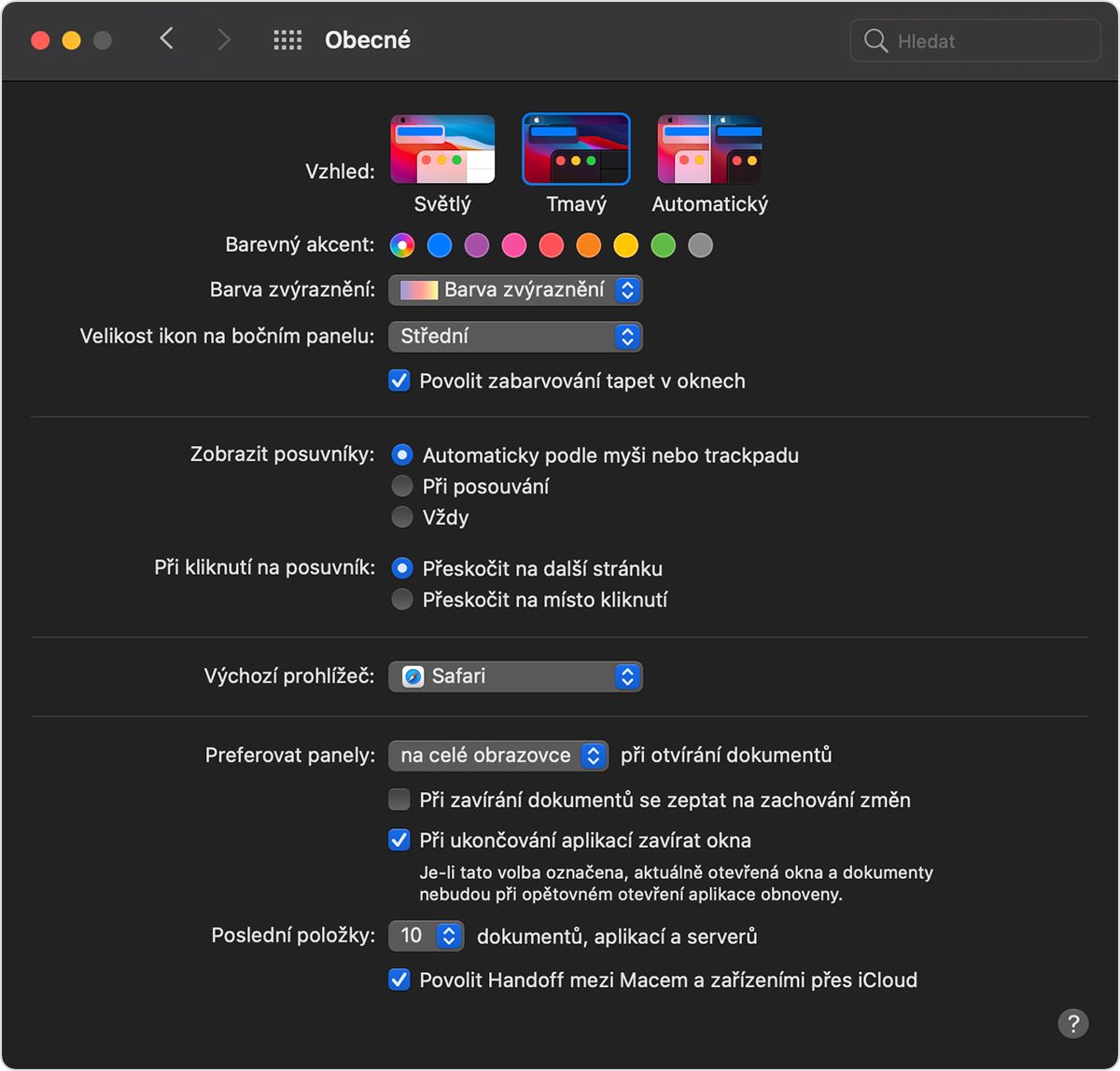
- Open System Preferences
- click General
- in this pane you'll be offered the Appearance options - Light, Dark and Auto.
Auto mode only appears if you're running macOS Catalina. Based on the time of day, it uses the light appearance during the day and then switches to dark by itself at night.
Many users quickly take a liking to Dark Mode. A big advantage of Dark Mode is, of course, that it saves battery. If you'd like to know how to save even more battery on your iPhone, read our article How to look after your Apple phone so it lasts as long as possible. Don't forget to clean your iPhone and Mac regularly. They'll reward you by working better and lasting longer. Here's our guide on how to clean a Mac keyboard.
Every so often it's also worth treating your Apple device to a professional clean. A specialist can reach places you can't get to with ordinary mechanical cleaning, and built-up dirt harms the device.
Professional cleaning from just 490 Kč. Come and see us! We specialise in Apple products.
✆ 607 855 558
✉ info@appleguru.cz
Seifertova 683/83, Prague 3 - Žižkov
Tips for advanced Dark Mode settings
macOS is a more comprehensive and complex operating system than iOS on mobile, so some of its apps and features have special Dark Mode settings or behave differently in it. If you want your emails to appear on a light background even when Dark Mode is on, choose Mail -> Preferences, click the Viewing tab and deselect Use dark backgrounds for messages.
To use a light background for Maps even when Dark Mode is on, click View in the Maps menu bar and deselect Use Dark Map. A light background for Notes with Dark Mode on is set in Notes -> Preferences, where you deselect Use dark backgrounds for note content. Safari in Dark Mode automatically shows a website in Dark Mode if the site supports it. If a site doesn't support Dark Mode, you can use Safari Reader to read articles in Dark Mode.
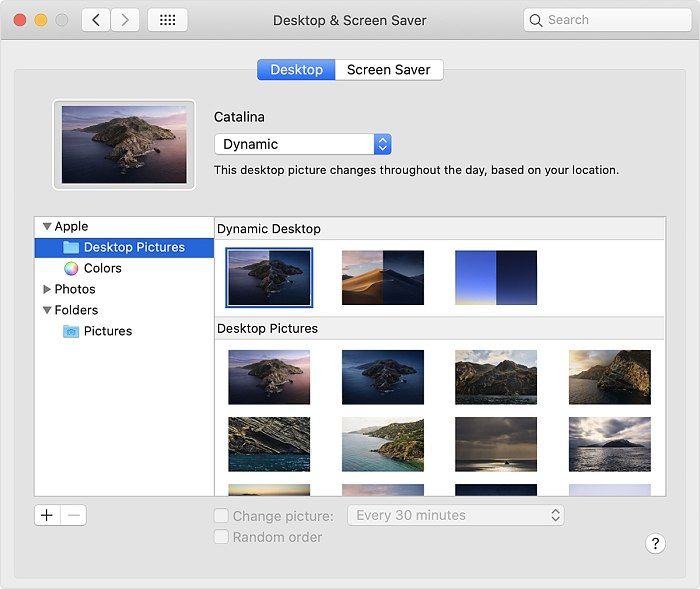
The system comes with plenty of desktop wallpapers, but only three of them are dynamic (if you're running macOS Catalina).
We specialise in Apple products and will be glad to help and advise you - appleguru.cz
And then there's Dynamic Desktop. If you turn on Dark Mode while using Dynamic Desktop, the desktop may switch to a static dark picture. You can change this setting in System Preferences under Desktop & Screen Saver. Dynamic Desktop changes as the day goes on, following the time of day in your current location.
Settings -> Display & Brightness -> Light, or would you rather have Dark?
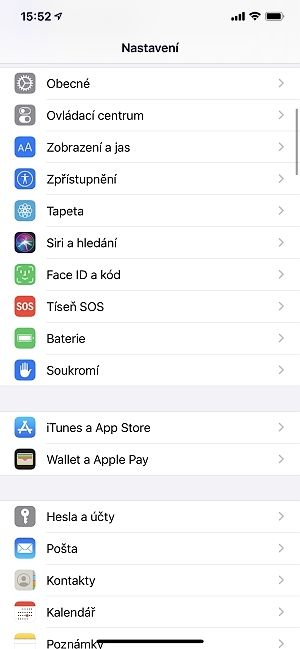
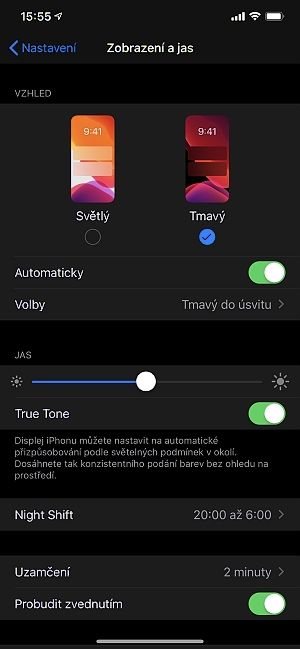
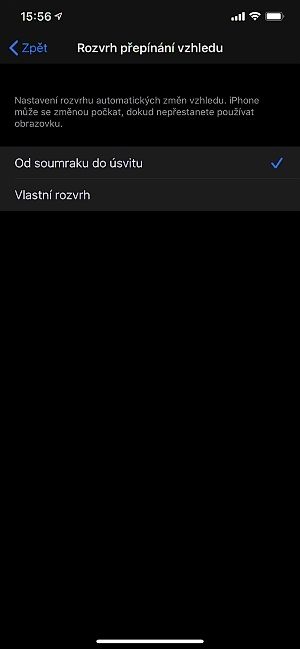
On an iPhone, iPad or iPod touch, go to Settings and choose Display & Brightness. The choice of appearance is the very first option you'll see. If you turn on Automatic, you can then decide whether the switch should happen from sunset to sunrise or on a fixed schedule that you set yourself. For quicker manual switching, you can also turn Dark Mode on and off from Control Centre by touching and holding the brightness control.
Touch and hold the brightness control in Control Centre and you can turn Dark Mode on manually, without having to look for it in Settings.
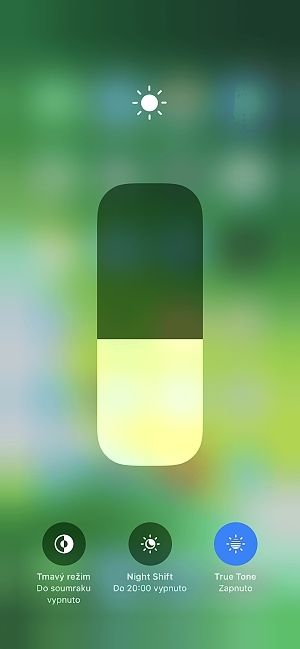
True Tone and Night Shift
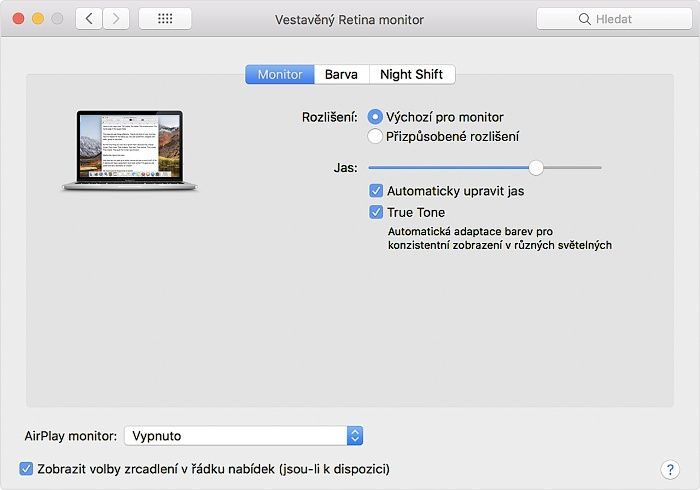
Using advanced multichannel sensors, True Tone adjusts the colour and intensity of your display to match the ambient light. The aim is simply to make the picture look more natural (do take care when editing photos with True Tone on, though – because it adjusts the colours, it can distort the result, which will look different once you turn it off).
True Tone is turned on on a Mac in System Preferences, in the Displays pane.
On a Mac, you can turn this option on in System Preferences by clicking Displays. Select the Display tab there and tick True Tone. Naturally, this technology is only available on certain computer models. If you can't see the option, yours doesn't support it.
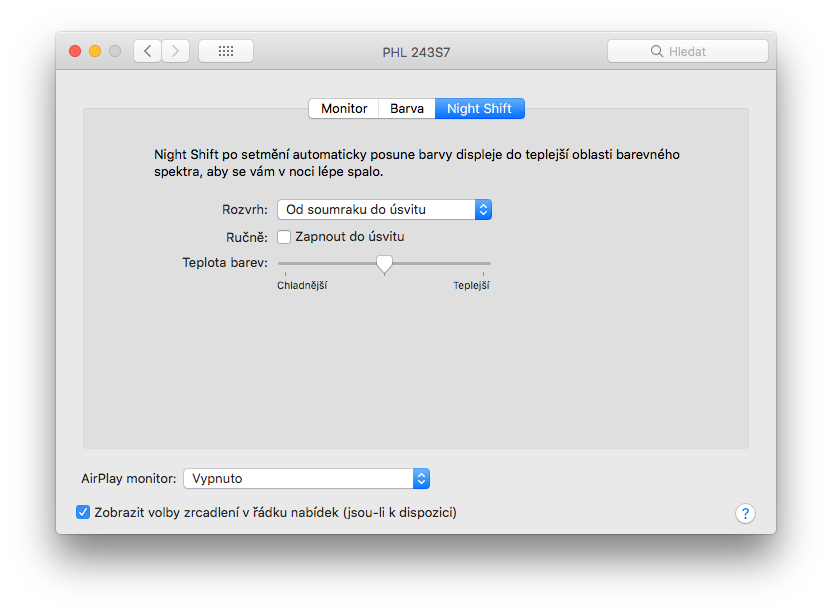
Night Shift on a Mac also works when external displays are connected.
The Night Shift tab deserves your attention too. After dark, this option automatically shifts the colours of your display to the warmer end of the colour spectrum so that you sleep better at night. Research shows that exposure to bright blue light in the evening affects your circadian rhythms, which can make it harder to fall asleep. Night Shift uses the clock and geographical location of your computer to work out when the sun sets where you are. It then automatically shifts the colours of the screen towards the warmer end of the spectrum. In the morning it returns the display to its normal colours.
Turning on True Tone and Night Shift in iOS 13.
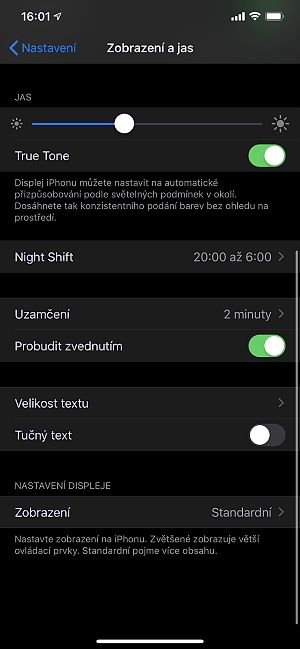
You can turn on True Tone and Night Shift on iOS and iPadOS devices too. You do it in the same place as Dark Mode, that is, in Settings under Display & Brightness. They then behave just as they do on Apple's computers.
Tips for getting more out of your iPhone display (and using less power)
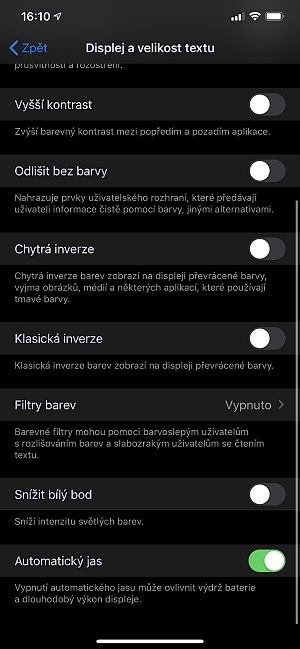
Under Display & Brightness you'll also find a manual brightness control. It's better to use the automatic setting, though, which adjusts the display brightness to the current lighting conditions. This feature is on by default. You can check it in Settings -> Accessibility -> Display & Text Size.
Although Auto-Brightness is tucked away, a little illogically, outside the Display & Brightness section, it's worth tracking down and turning on if need be.
iOS devices have an ambient light sensor and can adjust the brightness according to the lighting conditions around you. The sensor lowers the brightness in the dark and raises it in bright light. With Auto-Brightness on, you may notice the brightness slider moving as the lighting conditions change (in Control Centre, for example).
In the same menu you can also increase the contrast or, say, invert the colours. Don't be alarmed if the interface then looks as though your display is broken. These options are intended mainly for people with impaired vision, who can tell individual colours apart more easily this way. In this case, repairing your iPhone display is very simple: just turn the settings you changed back off.
Also set your iPhone (and iPad, if you have one) to turn the display off when you're not using it. A shorter interval works best. You can change this setting in Settings -> Display & Brightness -> Auto-Lock. You'll be saving not just the battery but the display itself. Try not to leave static images on the display for long periods at maximum brightness, as they can “burn in”. Although this is a natural characteristic of displays, it takes a while for a burnt-in image to disappear.
Third-party apps
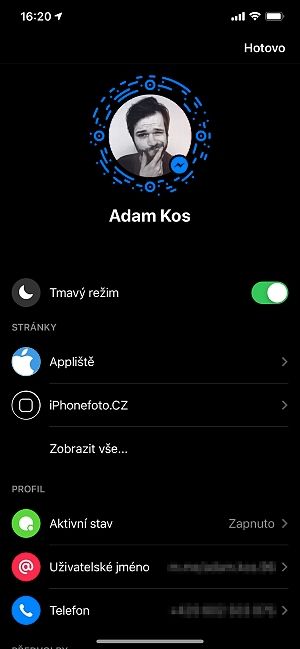
Apple has fine-tuned its own apps for Dark Mode completely. So whenever you switch the interface to Dark Mode, or it switches automatically, they switch too. Third-party developers are trying to build the feature into their apps as well. Some do it better, others worse. Instagram, for example, switches fully automatically with the system, whereas you have to switch Facebook Messenger yourself (you do so in the menu under your profile picture).
Turning on Dark Mode in Facebook Messenger
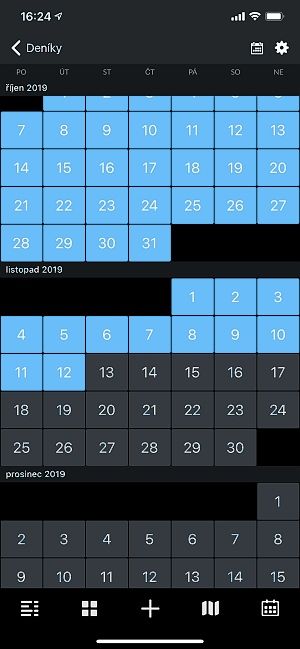
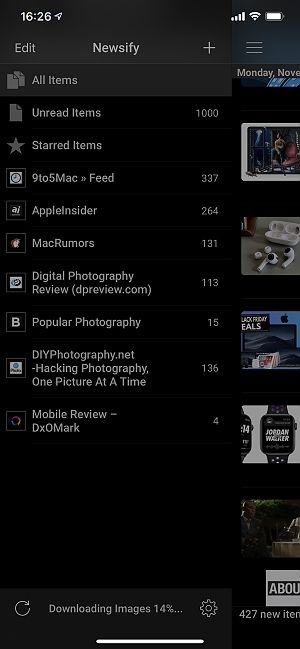
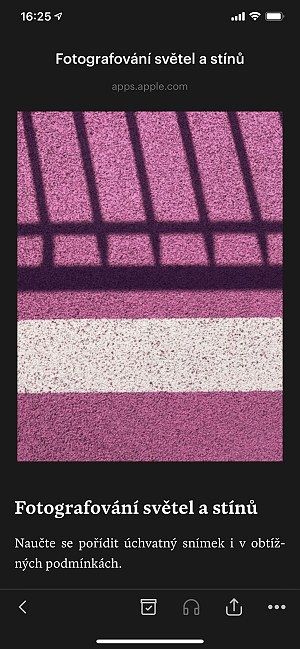
And which iOS apps already offer Dark Mode? They include the DayOne journal, the Newsify RSS reader, Pocket, an app for saving content to read offline, and many more.
This is what Dark Mode looks like in the iOS apps DayOne, Newsify, Pocket and Instagram.