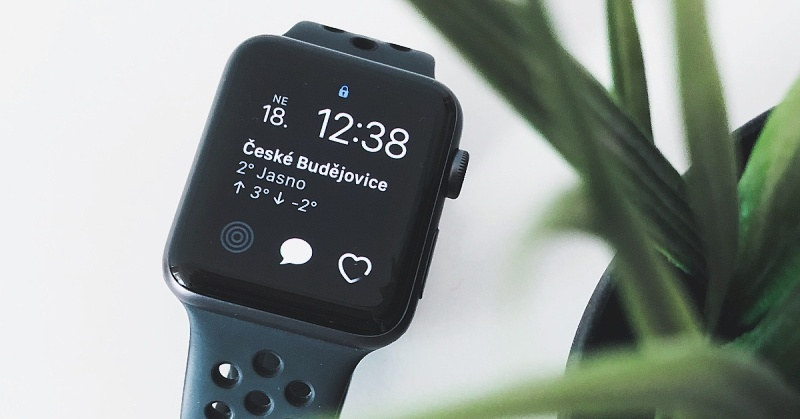
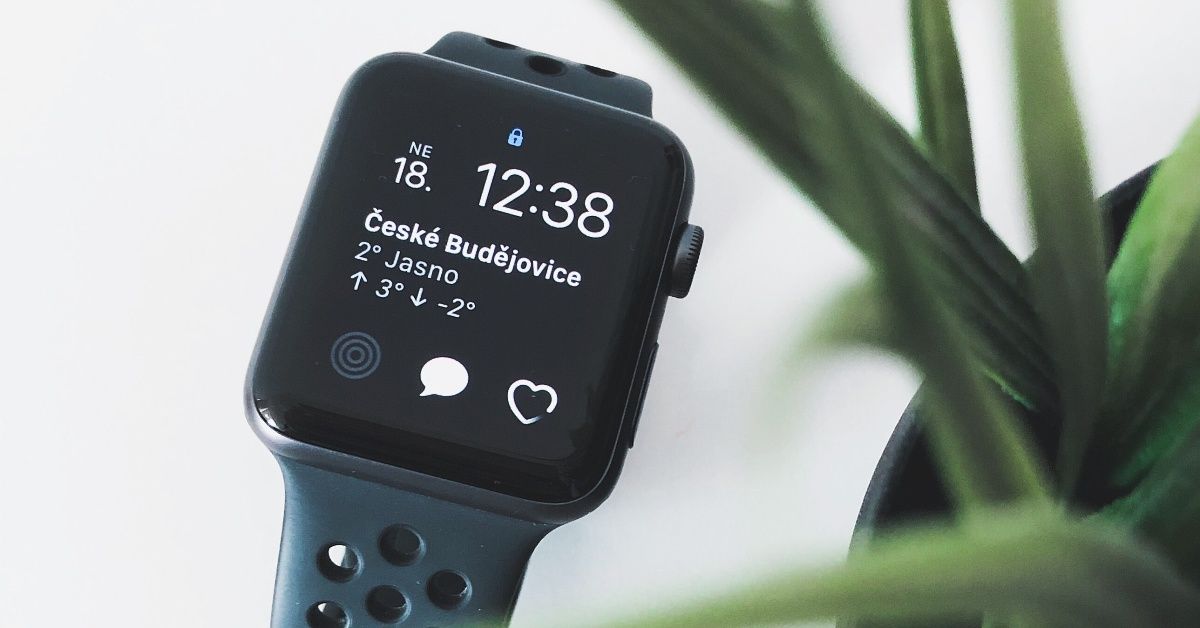
The Apple Watch is one of the best-selling “smart” watches on the market. But even it isn't immune to problems. Drawing on our experience and the issues customers bring to us, we've put together a list of the most common ones. In most cases, though, it's only a matter of the right settings, and you can easily fix the problem yourself.
Quick navigation:
1. Apple Watch won't charge
2. Apple Watch overheating
3. Apple Watch won't turn on
4. Apple Watch doesn't wake when you raise your wrist
5. Apple Watch restarts on its own
6. Apple Watch won't connect to iPhone
7. The Apple Watch Digital Crown isn't working
8. Messages on Apple Watch stay unread
9. Poor Apple Watch battery life
10. The screen has popped out of the watch case
11. Apple Watch Bluetooth won't connect or keeps disconnecting
12. Apple Watch isn't tracking activity
13. Light “leaking” from the Apple Watch Series 4 display
14. Apps on Apple Watch crash or freeze
15. Notifications don't appear on Apple Watch
16. The skin under your Apple Watch is irritated and itchy
1. Apple Watch won't charge
Probably the most common problem Apple Watch owners run into. They connect the watch to the charging cable and the lightning bolt icon doesn't switch from red to green.
How to fix it:
- Wait a moment. Especially if the watch is completely flat, it takes a while for the icon to change.
- Is your watch brand new? Make sure there are no bits of protective film left on the Apple Watch or the charger.
- Make sure the charger sits properly both against the watch and in the mains socket. Check that there's no dirt anywhere.
- Use the original charging cable that came with your Apple Watch. If you're already using it, try a different charger or dock.
- Test the charging cable by plugging it into a laptop or a different socket.
- Restart the watch – press and hold the side button and the Digital Crown together for at least ten seconds, until you see the Apple logo.
None of this working? Come and see us! We specialise in Apple products.
✆ 607 855 558
✉ info@appleguru.cz
Seifertova 683/83, Prague 3 – Žižkov
2. Apple Watch overheating
The internet is full of this problem, but you probably don't need to worry about it. It affects one particular model – the Apple Watch SE – and 90% of the reports come from users in South Korea. The whole watch heats up, burning the wearer's wrist, and in some cases a mark also appears on the display.
How to fix it:
- Make a claim with the seller. So far, Apple has dealt with every claim by replacing the watch under warranty.
- In the meantime, take the watch off and let the battery run flat. Don't turn it on again until the seller or a professional has been able to look at it.
3. Apple Watch won't turn on
The watch either switches itself off, or doesn't respond at all and can't be turned on
How to fix it:
- Check that the battery is charged. The watch may simply be flat.
- Are you using the Power Reserve battery-saving mode? In that case the watch doesn't respond to wrist movement or taps. Try turning the watch on by pressing the side buttons.
- Restart the watch – press and hold the side button and the Digital Crown together for at least ten seconds, until you see the Apple logo.
- If the watch lights up but doesn't start, or if it shows a red exclamation mark, it's probably a hardware problem. In that case, visit a professional repair shop to find the cause.
4. Apple Watch doesn't wake when you raise your wrist
A problem that's often discussed on Apple forums. The screen simply doesn't “wake up” when people raise their wrist (which is one of the Apple Watch's features)
How to fix it:
- In the Watch app on your iPhone, go to the My Watch tab > General > Wake Screen and make sure Wake on Wrist Raise is turned on.
- It may also be because your Apple Watch is in Theatre Mode. If so, you should see the theatre icon (two masks) at the top of the screen. To turn it off, simply press the Digital Crown to wake the screen, then swipe up from the bottom to open Control Centre. Scroll down, find the Theatre Mode icon and tap it.
- Make sure your iOS device or Apple Watch doesn't need an update. Go to Settings> General> Software Update and see whether an update is available for your device.
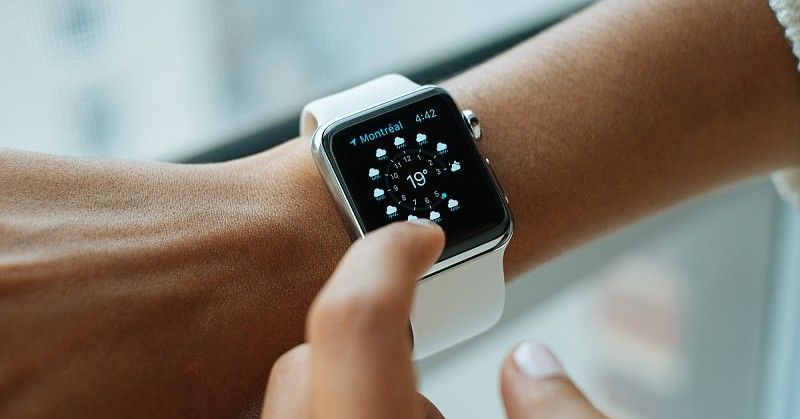
5. Apple Watch restarts on its own
This problem is reported mainly by Apple Watch Series 3 owners after upgrading to watchOS 7. The watch restarts on its own, sometimes several times a day.
How to fix it:
- Check that your Apple Watch is running the latest version of watchOS. On 19 October 2020, Apple released watchOS 7.0.3, which fixes these restart problems on the Series 3.
6. Apple Watch won't connect to iPhone
You turn the watch on and the display shows “No iPhone” (or “Disconnected”).
How to fix it:
- Start by making sure Airplane Mode is turned off on both the watch and the iPhone, and that Wi-Fi and Bluetooth are turned on.
- If the settings are fine, restart your Apple Watch (hold the side button until you see the Power Off slider, then drag the Power Off slider to the right). Once your Apple Watch is off, turn it back on by pressing and holding the side button until you see the Apple logo.
- If that doesn't help either, restart your iPhone. If you're not sure how, read our guide to restarting an iPhone.
- Check the connection using Control Centre on your Apple Watch.
- If none of this has helped, unpair the devices and pair them again.
7. The Apple Watch Digital Crown isn't working
Does the Digital Crown on your watch sometimes fail to respond?
How to fix it:
- Unpair your Apple Watch and pair it again. This fixes most cases caused by a software fault.
- If, however, the crown feels stuck or doesn't turn smoothly, it's a mechanical problem and the watch needs cleaning. You'll find guides online on cleaning an Apple Watch under warm running water, but we don't recommend it. Many owners misjudge the pressure needed, and water gets into the mechanism. We recommend visiting a repair shop from time to time and having the watch cleaned professionally.
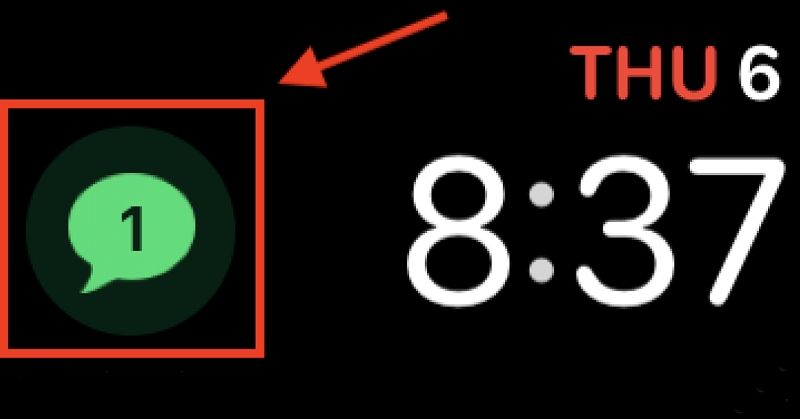
8. Messages on Apple Watch stay unread
A rather annoying problem. You read a message on your Apple Watch, but the new-message icon still says the message is unread. So, of course, you can't tell when a new message arrives.
This problem seems to occur most often when the user switches to a new/different iPhone.
How to fix it:
- Close the Messages app on your iPhone, then try turning off both the iPhone and the Apple Watch (press and hold the power button, then slide to Power Off). Turn the iPhone back on first, then the Apple Watch. Both devices should now sync correctly.
- Try signing out of iCloud on all connected devices (watch, phone, iPad). Restart the devices and sign back in to iCloud.
- Unpair your Apple Watch and go through the whole pairing process again, following Apple's instructions.
Source: reddit.com
9. Poor Apple Watch battery life
Battery life is definitely one of the Apple Watch's main weaknesses. In general, though, it should last a full day on a single charge. If it doesn't, there are plenty of tips for saving battery – or it may be time to have the battery replaced.
How to fix it:
- First of all, update your watch to the latest version of watchOS. On 12 October 2020, Apple released watchOS 7.0.2, which reportedly fixed problems with the battery draining quickly.
- When you don't need the Apple Watch's features and are using it just as a watch, turn on Power Reserve (press and hold the side button on your Apple Watch until the sliders appear, then drag Power Reserve to the right). Your Apple Watch will then show only the time.
- Turn off all the notifications you don't need. Every alert and every time the display lights up drains the battery. Open the Apple Watch app on your iPhone and go to Notifications. Turn off everything you don't need.
- On your Apple Watch, go to Settings > Brightness & Text Size and lower the brightness.
- On your Apple Watch, go to Settings > General > Wake Screen and turn off waking the screen on wrist raise. You can also do this in the Apple Watch app on your iPhone.
- Turn off the heart rate sensor by opening the Apple Watch app on your iPhone, tapping Workout and turning on Power Saving Mode.
- Are you by any chance running a beta version of watchOS? Try unpairing the watch from the phone and pairing them again
- It's possible that one of your apps is causing the problem. Try uninstalling everything you don't need – choose Delete App. Don't worry, the app won't be uninstalled from your iPhone; it will only be deactivated.
- The last thing you can try is erasing all content and settings on your Apple Watch (a factory reset). Go to Settings > General > Reset > Erase All Content and Settings. Once it's finished, you'll need to pair your Apple Watch with your iPhone again.
10. The screen has popped out of the watch case
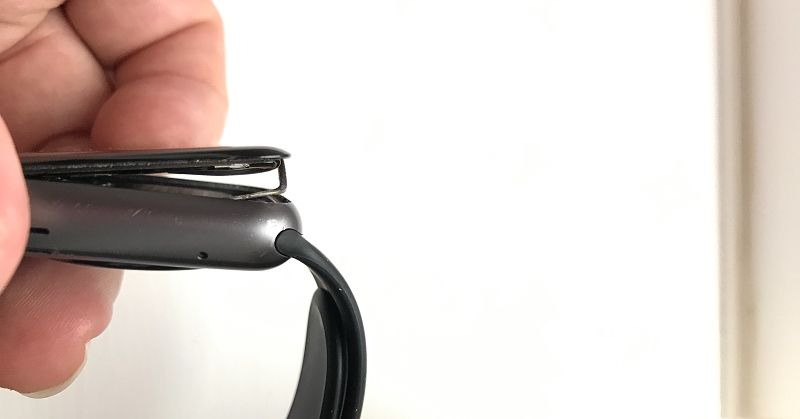
A few Apple Watch owners have had the whole screen “pop out” of the watch body.
The culprit in this case is the battery. As the battery ages, it starts to swell and takes up more room in the watch's small interior. In rare cases it can push the screen out. As you can see in the picture, the display is “hanging” off the watch. The watch carries on working, though.
This problem is reported most often by Apple Watch Series 3 owners.
How to fix it:
Visit a repair shop and get advice on what to do next, depending on the extent of the fault.
Source: discussions.apple.com
11. Apple Watch Bluetooth won't connect or keeps disconnecting
For some people, the Apple Watch disconnects from the iPhone even when the two are right next to each other. Others have Bluetooth trouble when using headphones, for example while running. And there can be several causes.
How to fix it:
- For Bluetooth to work properly, the devices need to be close to each other. Different devices have different ranges, though. Even something as small as attaching your iPhone to the same side of your body as your Apple Watch can help. Or, the other way round, moving your Apple Watch to the other wrist. You might think such a small distance can't make a difference, but it does.
- Do you get connection problems when you're using headphones? Sync your playlist to your Apple Watch and turn off Bluetooth on your iPhone. That should let your music play smoothly, without annoying dropouts. You don't need to worry about the data from your run or workout. Once you reconnect the phone, the data will sync.
The problem may, however, be on the phone's side rather than the watch's:
- Try turning Bluetooth off on your iPhone, waiting a few seconds and turning it back on.
- Try turning Airplane Mode on and off
- Try unpairing the devices and then pairing them again
- The last option is to erase all content and settings on your Apple Watch. Go to Settings> General> Reset> Erase All Content and Settings. Once it's finished, you'll need to pair your Apple Watch with your iPhone again.
12. Apple Watch isn't tracking activity
The watch isn't tracking your workouts, routes or heart rate correctly.
How to fix it:
- In the Apple Watch app on your iPhone, go to My Watch > General > Wrist Detection. If it isn't active, turn it on. Then make sure Bluetooth is enabled on your iPhone under Settings > Bluetooth.
- Make sure your Apple Watch isn't too loose on your wrist. Adjusting the strap can help the watch track your activity better.
- Keep your personal details, such as height and weight, up to date. The Apple Watch uses this information to track calories burned, for example. Open the Watch app on your iPhone and tap My Watch > Health > Edit.
- If your route tracking isn't right, try opening the Workout app and changing the setting from Quick Start Walk to Outdoor Walk. On your iPhone, also go to Settings > Privacy > Location Services. Set Apple Watch Faces to While Using, then scroll down to System Services and enable all the settings related to location and distance tracking.
- If none of the points above helps, your watch may need to be recalibrated. You do this in the Apple Watch app on your iPhone. Tap My Watch > Privacy > Motion & Fitness > Reset Fitness Calibration Data. Then follow the calibration instructions.
13. Light “leaking” from the Apple Watch Series 4 display
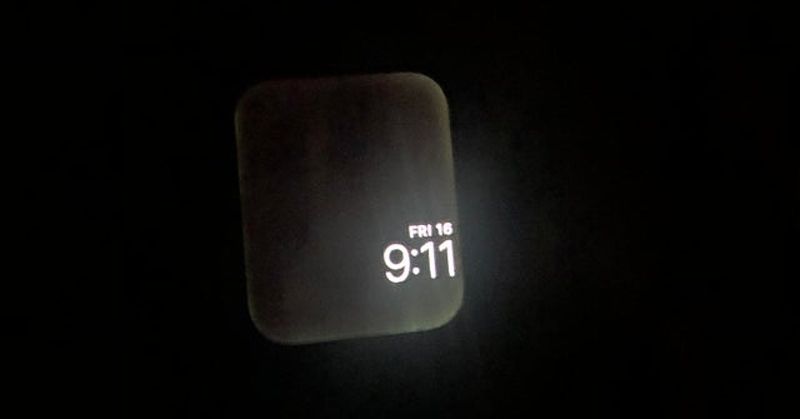
You're getting ready for bed, the brightness on your watch dims, but one side of the display stays bright and yellow (see picture). As if light were leaking out of the watch. In reality that can't be the case, because this model has an OLED screen. It's a different fault in the device, and unfortunately it can't be fixed.
How to fix it:
Visit a repair shop and get advice on what to do next, depending on the extent of the fault.
Source: reddit.com
14. Apps on Apple Watch crash or freeze
Are the apps on your Apple Watch not working as they should? Watch owners most often report problems with Nike apps.
How to fix it:
- First of all, check that the problem apps are up to date. If they aren't, update them and try again.
- Restart the watch – press and hold the side button and the Digital Crown together for at least ten seconds, until you see the Apple logo.
- Update the watch software – open the Apple Watch app on your iPhone and, under My Watch > General > Software Update, check that you have the latest version.
- Uninstall the problem apps and install them again.
- Try a factory reset under Settings > General > Reset > Erase All Content and Settings. You will, however, have to set your Apple Watch up again.
15. Notifications don't appear on Apple Watch
If notifications aren't showing on your watch, it's probably because the watch is locked, Do Not Disturb is turned on, or Wrist Detection is turned off.
How to fix it:
- If you've set a passcode for your Apple Watch, it locks automatically when you aren't wearing it, when it loses contact with your skin or while it's charging. The solution is to remove the passcode or tighten the watch strap. Forgotten your passcode? You'll have to erase the watch. On your iPhone, in the Apple Watch app, tap My Watch > General > Reset > Erase Apple Watch Content and Settings and tap to confirm.
- If Do Not Disturb is active, you can tell by the moon symbol. You turn this feature on / off by swiping up on the watch face and in the Settings menu.
- You can check Wrist Detection on your iPhone, in the Apple Watch app, under My Watch > General > Wrist Detection. Check that there's no dirt anywhere.
16. The skin under your Apple Watch is irritated and itchy
In rare cases, especially in people with sensitive skin, the Apple Watch can cause skin irritation, particularly when worn for long periods. If you generally have trouble with sensitive skin when wearing a watch, the Apple Watch isn't a good choice for you, mainly because of its sensors. If the trouble isn't severe and you simply want to use the watch, try these tips to ease the problem:
How to fix it:
- Loosen the watch strap. Irritation is often caused by sweat trapped between the skin and the sensors, so the skin can't breathe. Loosen the strap a little, and if you're sweaty after physical activity, take the watch off and wash your skin. Don't worry – loosening the strap slightly won't affect how well the Apple Watch's sensors work.
- Plan a break from your Apple Watch every day. Give the watch time to recharge and your skin a chance to recover. Take the watch off at night.
- If the trouble shows up under the strap rather than under the watch body, try a strap made of a different material.
* Diagnostics are free for all faults if you go ahead with the repair; otherwise they are charged according to the current price list.