
Wondering whether and how to update to macOS Catalina? Has Apple managed to fix all the bugs yet? Is it safe?
Or are you already running macOS Catalina 10.15 and dealing with one of its annoying problems?
We'll answer all your questions.

Updating to macOS Catalina - the problems
Apple released macOS 10.15 Catalina in October 2019. The first brave users who moved to this operating system reported a host of problems:
- freezing during startup
- disappearing email in the Mail app
- a problem with external graphics cards
- or, worst of all, the Mac won't start up at all
Since then, however, Apple has come out with two updates, macOS 10.15.1 and 10.15.2, which fix a large share of the problems. And it's working on more.
It's important to remember that no new software is free of problems. That's one of the reasons why it's not recommended to move to new versions as soon as they're released.
Enough time has now passed since the initial launch, though, and the new system offers many benefits.
Why update to macOS Catalina?
By now, all Mac users should be moving to this operating system. It will keep their computer up to date and fully functional. Not moving is recommended only if you have software installed that is essential to you and isn't compatible with this system (Catalina ends support for 32-bit apps).
What's more, macOS Catalina offers:
- stronger security
- improved performance
- the option of connecting an iPad as a second display for your Mac
- great new apps for music, TV and podcasts
The upgrade is easy and free.
Who can move to macOS Catalina?
MacBook, 2015 and later
iMac, 2012 and later
MacBook Air, 2012 and later
iMac Pro, 2017 and later
MacBook Pro, 2012 and later
Mac Pro, 2013 and later
Mac mini, 2012 and later
How do you update?
Before you start the update, we strongly recommend protecting your data. Follow our guide on how to back up your Mac and protect your data.
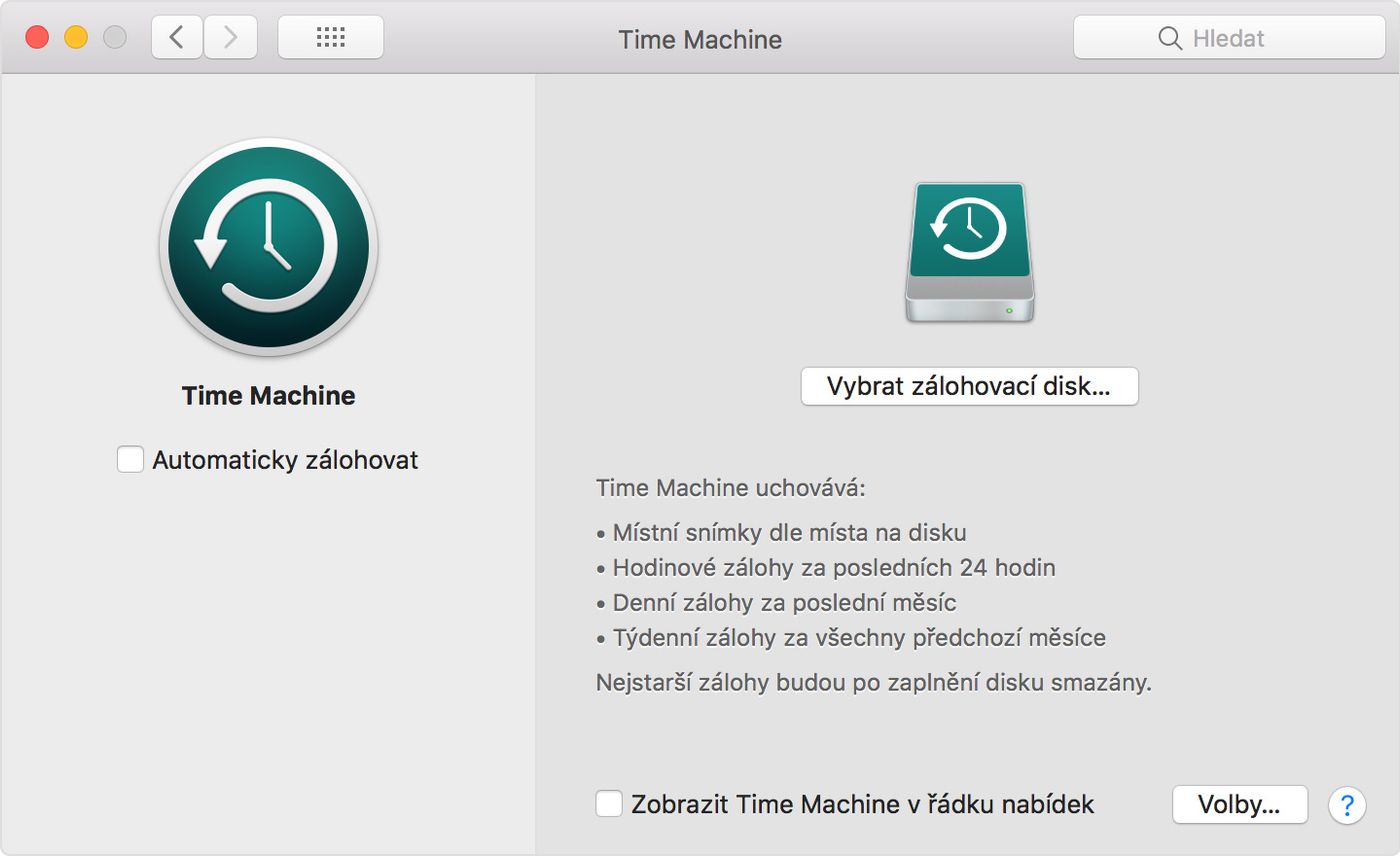
After that it's straightforward - Apple has made installation simple, straight from the system settings:
Upgrading from macOS Mojave
- click the Apple icon in the top-left corner of your screen
- click System Preferences
- choose Software Update
- click Upgrade Now and follow the instructions
Upgrading from an older version of macOS
When upgrading from older operating systems, you first need to upgrade to OS X El Capitan (10.11) and only then from it to macOS Catalina.
Don't fancy tackling the update yourself? Come and see us! We specialise in Apple products.
✆ 607 855 558
✉ info@appleguru.cz
Seifertova 683/83, Prague 3 - Žižkov
Solving problems with the macOS update
As already mentioned, most of the initial problems have since been resolved by updates. So make sure you've updated your version of the OS to the latest one.
The most common problems and how to solve them:
- freezing during startup - a "hard restart" will help
- disappearing email in the Mail app - an OS update should fix the problem
- a problem with external graphics cards - an OS update should fix the problem
- the Mac won't start up at all - a black screen with a question-mark folder appears:

If you've run into the last of these problems, you unfortunately most likely won't be able to fix it yourself. In all probability, the main problem is a corrupted EFI (Extensible Firmware Interface). This is a specification that clearly defines the software interface between the operating system – in our case macOS Catalina – and the firmware used by the computer's hardware.
The current version of this specification was originally designed by Intel and replaced Open Firmware, which was used on older machines with PowerPC processors.
The simplest solution is therefore to reflash the entire EFI. This isn't a job users can handle themselves, nor can we recommend trying. The best course is to use a MacBook repair service, where technicians will reflash the firmware with their own tools and so make sure everything works properly.
The update hasn't damaged your computer's hardware, and there's no need to fear the worst-case scenarios.
We do, however, strongly recommend backing up your data by following our guide, both on an ongoing basis and whenever you make a major change (which changing your operating system certainly is).