

Has your Mac suddenly gone on strike? It won't turn on and all you can see is a black screen? What now? We've written down our tried-and-tested "first aid" tips. Give them a go and you'll very probably get your MacBook working again without a trip to the repair shop.
Quick navigation:
Checking the power
Resetting the system management controller
What to do if your Mac only partly starts up

1/ Check the power
- press the power button (the main ON/OFF button). Watch for any signs that the power is on. These include various sounds, such as the fan, the hard drive or others. Look out for lights too – on the backlit keyboard, the Caps Lock key or the sleep indicator light. All of these signs show that the power is on.
- check that your Mac really is getting power. Is the power cable damaged in any way? Do you have the right cable and adapter? Is it plugged properly into the Mac and the socket? Is the socket working? If you're not sure about the socket, plug a lamp or another device into it.
- are you using an external display? Check that it's turned on and that there's nothing else wrong with it.
- check the brightness setting - is the display brightness turned down too low? Mac notebooks have a brightness-up key with a sun symbol on the built-in keyboard.
2/ Reset the system management controller (SMC)
- press and hold the power button (the main ON/OFF button) for 10 seconds
- release it and press it again
- disconnect all peripherals from your Mac, including printers, drives, USB hubs and mobile devices. The problem may well lie in these devices and their cables, especially if they aren't genuine.
- press and hold the power button for 10 seconds once more, then release it and press it again.
3/ What to do if your Mac only partly starts up - what do you see on the display?
Your Mac may turn on but then fail to finish starting up. What to do next depends on what you see on its display, because there are several kinds of screen. They can differ not only by computer model and macOS version but also by other specific circumstances. Whichever Apple computer model you own, startup only counts as complete once the Finder menu bar, the desktop and the Dock appear.
- Prohibitory symbol – a circle with a line or slash through it means that the selected startup disk contains a Mac operating system, but not a macOS that your Mac can use. You should reinstall macOS on that disk.
- Question mark – a folder with a question mark means that the selected startup disk isn't available or doesn't contain a Mac operating system. If a flashing question mark appears on your Mac for a few seconds but the computer then carries on starting up, you may need to reselect the startup disk in System Preferences. There, click the icon of the disk you normally use to start up your computer. Unless you've chosen otherwise, it's usually called Macintosh HD. If, however, a flashing question mark appears when your Mac starts up and startup goes no further, turn the Mac off by pressing and holding the power button for a few seconds. Press it once to turn the Mac on again, then immediately press and hold the Command+R keys to start the Mac up in recovery mode. Keep both keys held down until the Apple logo or a globe appears. Once the macOS Utilities window appears, choose Startup Disk from the Apple menu, select your disk and click Restart.
Image: Before the system starts, a Mac's screen can show many different symbols, each conveying different information.

- Blank screen – it's normal for the screen to stay blank once or even several times during startup. It may be black, grey or blue, or show the desktop picture. If no picture appears even after a while, check that the display is turned on and connected and that its brightness isn't turned down.
- Apple logo or spinning globe – your Mac shows the Apple logo when it finds a local startup disk, i.e. a startup disk inside the Mac or connected to one of its ports. If it doesn't find one, it tries to find one on the network. When using a network startup disk, your Mac shows a spinning globe instead of the Apple logo. The globe also appears when starting up from macOS Recovery over the internet. As startup continues, you should see a progress bar.
- Globe with an alert symbol – when your Mac tries and fails to start up from macOS Recovery over the internet, a globe with an exclamation mark appears. Your Mac may be unable to connect to the internet, or it may be using a network configuration that doesn't work with macOS Recovery.
- Lock – if your Mac uses a firmware password, a lock icon appears whenever you try to start up from another disk or volume, such as an external drive or macOS Recovery. To continue, you'll need to enter the password for your Mac.
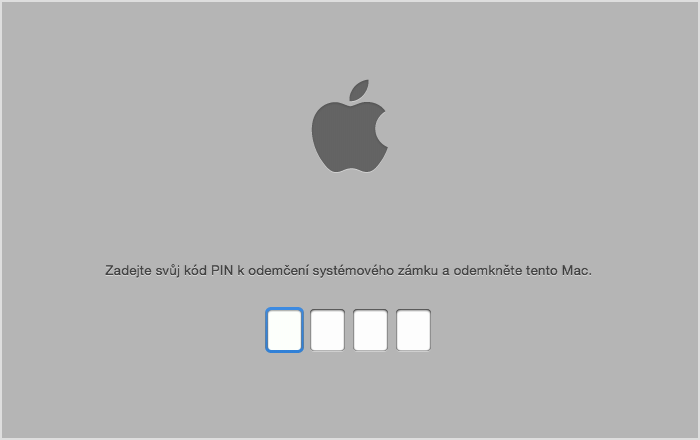
- PIN code – your Mac asks you to enter a PIN code when it has been locked remotely using Lost Mode in Find My Mac. To continue, enter the four-digit or six-digit code.
Image 3: Entering the correct code unlocks your Mac; with the wrong one you simply won't get past this screen.
System management controller
On Intel-based Macs, the SMC looks after basic system functions, including responding to presses of the power button, responding to the lid being opened and closed on MacBooks, battery management, thermal management, keyboard backlighting, status indicator light management, selecting an external video source on some iMac displays, and much more.
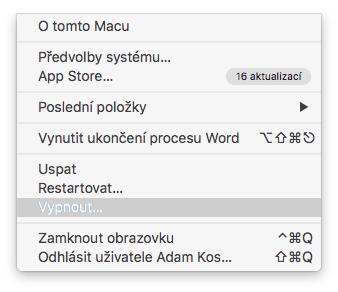
For MacBooks made from 2009 onwards, the first step in resetting the controller is to shut the computer down. You do this from the Apple logo menu in the top-left corner, where you choose Shut Down... On the left side of the built-in keyboard, press Shift-Control-Option (Alt) and, at the same time, press the power button. Hold all the keys and the power button down for 10 seconds. If you have a MacBook Pro with Touch ID, the Touch ID button also serves as the power button. Then release all the keys and press the power button again to turn your MacBook on.
It's enough to keep a Mac in sleep mode. Sometimes, though, there are simply situations when you need to shut it down.
On an iMac, Mac mini, Mac Pro or Xserve the first step – shutting the computer down – is the same. Once that's done, unplug the power cable, wait 15 seconds and plug it back in. Then wait 5 seconds and press the power button again to turn your Mac on. If your Mac already has the Apple T2 chip, press the power button after shutting the computer down and hold it for 10 seconds. Then release it and wait a few more seconds. Press the power button again to turn your Mac on.
It's worth adding that resetting the SMC doesn't reset or otherwise change the contents of NVRAM or PRAM on Intel-based Macs. If your Mac still won't turn on even after these steps, you'll need to turn to the professionals, so visit an Apple repair shop. They usually run diagnostics free of charge, so you'll quickly find out where the problem lies and can arrange to have it fixed.
Is your MacBook still not starting up? Come and see us! We specialise in Apple products.
✆ 607 855 558
✉ info@appleguru.cz
Seifertova 683/83, Prague 3 - Žižkov
you can also conveniently send us your device by courier