
Many of the problems you may come across on Mac computers are solved by resetting the PRAM and SMC memory. Conflicts can sometimes arise in their settings, and these can result in the MacBook not working correctly. A reset to factory settings can therefore usually solve the most common problems with MacBook computers.

PRAM/NVRAM memory (Parameter Random Access Memory, Non-Volatile Random-Access Memory)
PRAM stores certain settings that you need to have quick access to (sound volume, display resolution, time zone, startup disk selection and so on)
NVRAM has a similar function and is used on newer Mac models.
SMC memory (System Management Controller) controls many important hardware processes such as battery charging, sleep modes and others.
WARNING: resetting these memories is usually a safe operation, but that isn't guaranteed. The reset also wipes the individual settings you've chosen in place of the standard factory settings. So first try an ordinary restart and our “first aid” tips for the most common problems with Mac computers. Only then move on to resetting the memories. Also, always back up your data before you start. We describe how to back up data on a Mac in this article.
How to reset PRAM/NVRAM
STEP 1: shut down the MacBook (completely, until the fans fall silent)
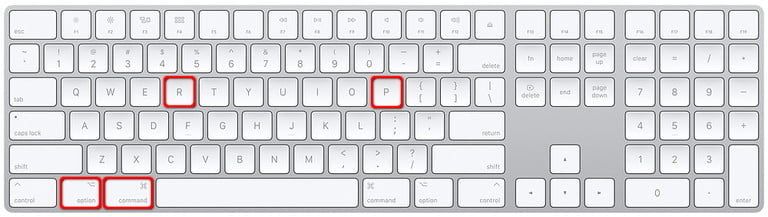
STEP 2: turn it on again, press the Option (Alt) + Command + P + R keys together and hold them for 20 seconds
STEP 3: after logging in, open System Settings and adjust the settings that the reset has changed. These will most likely be the time zone and display resolution settings.
How to reset the SMC
The procedure differs depending on the type of MacBook, or rather on whether or not it has the T2 security chip. Almost all MacBooks from 2018 onwards have the T2 chip.
SMC reset on laptops with the T2 security chip (models from 2018):
STEP 1: shut down the MacBook
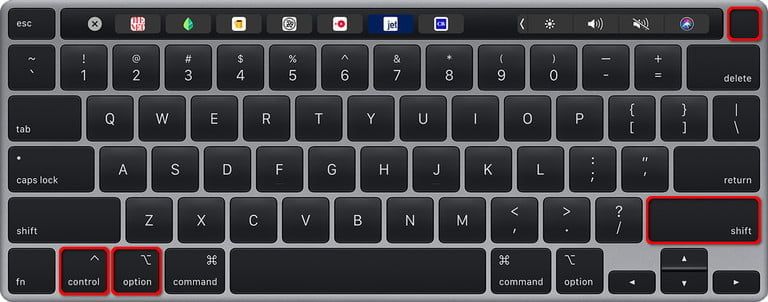
STEP 2: press the Control + Option (Alt) + Shift (right) keys together and hold for 7 seconds
STEP 3: after 7 seconds, press the power button (on/off) as well. Hold all 4 keys for another 7 seconds and release them.
STEP 4: wait 7 seconds and turn the device on with the power button
SMC reset on laptops without the T2 security chip (models up to 2018):
STEP 1: Shut down the MacBook
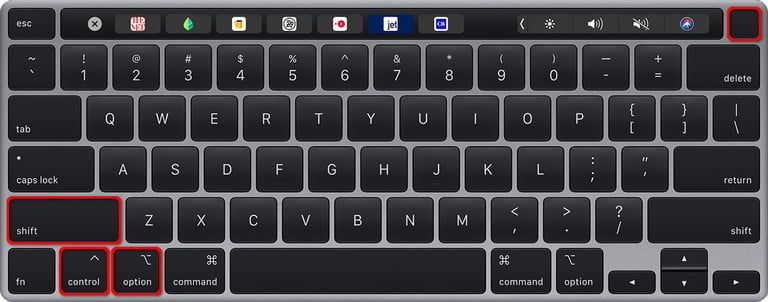
STEP 2: Press the Control + Option (Alt) + Shift (left) + Power keys together and hold for 10 seconds
STEP 3: After 10 seconds, release all 4 keys and press the power button