Are you getting the most out of your Mac's trackpad? Do you know all the tricks it can do? We've put together a list of trackpad features that you're sure to fall in love with in your day-to-day work – whether you use the built-in trackpad on your MacBook or an external trackpad for a desktop Mac.
Quick navigation:
What a trackpad is
The most-used trackpad features
How to customise the trackpad features
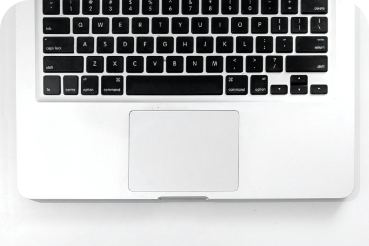
What is the Apple trackpad vs an ordinary touchpad
A monitor, a keyboard and a mouse – that used to be the essential kit of every PC. Notebooks, of course, have a built-in keyboard and a touchpad (in Apple's case called a trackpad) that stands in for the mouse. Even so, most laptop users still use a mouse, because it's often noticeably more comfortable than controlling the computer with the small touch surface of a touchpad.
Apple, however, disliked the idea of users having to use any additional accessory at all to control its MacBooks. That's why it kept on improving its trackpad. Nowadays trackpads can easily replace a mouse. The main difference between the trackpad and an ordinary touchpad lies in its size and ease of control. It's clickable across its entire surface and offers comfortable, wide-ranging ways of controlling the computer. Using it doesn't make your fingers ache, and the intelligent Force Touch trackpad can tell whether you're just touching it, clicking, or pressing firmly. So there are three possible levels of finger pressure on the trackpad, and the actions you perform can differ accordingly.
The best trackpad features - how to use them
- left click - a click or tap with one finger simulates the left button on a traditional mouse
- right click - a click or tap with two fingers = the right button on a traditional mouse
- scroll - slide your fingers up or down to scroll (move) up or down the page
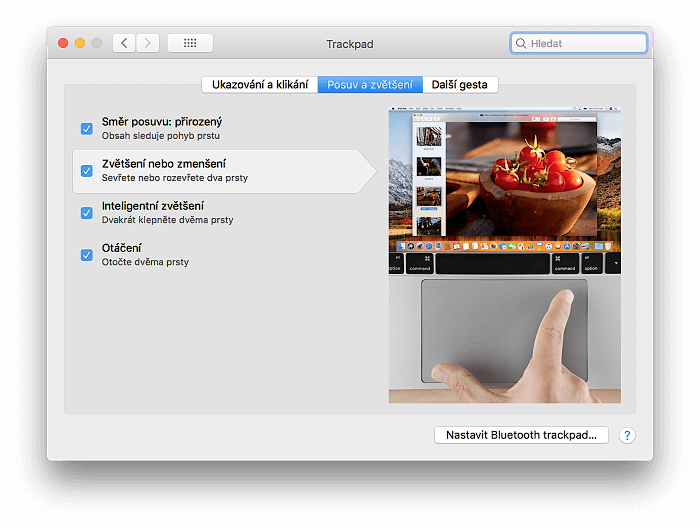
- smart zoom - double-tap with two fingers to zoom in and back out of a web page or PDF.
- zoom in/out - pinch your fingers together or spread them apart on the trackpad to zoom the page in or out as needed.
- rotate - move two fingers around each other on the trackpad to rotate an image.
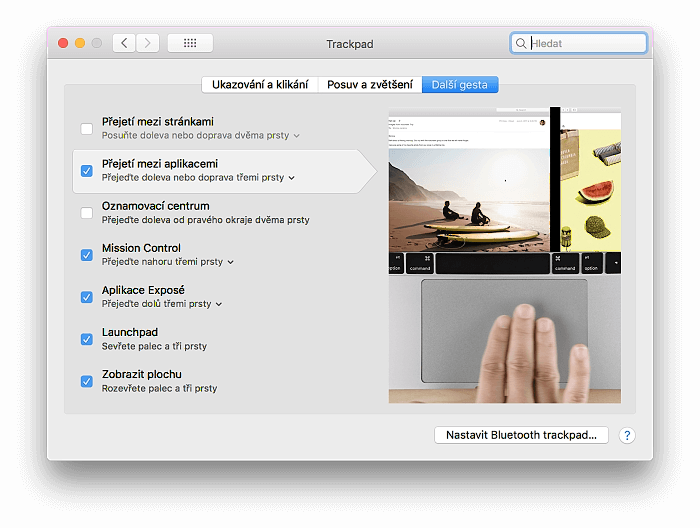
- swipe between pages - swipe left or right with two fingers to show the previous or next page.
- show desktop - spread your thumb and three fingers apart to show the desktop.
- switch between open apps - swipe left or right with four fingers to switch between apps
- show all active apps - swipe up with three fingers to zoom out from the current window and see all the apps that are currently open.
Once you get used to the trackpad, it won't even occur to you to use a mouse. We do recommend, though, that you don't forget to clean your MacBook regularly, along with any external keyboard and trackpad. You'll find instructions in our article how to clean a MacBook keyboard. Once in a while, we recommend treating your computer to a professional clean. It will work better and last longer.
Professional MacBook cleaning from 490 Kč. Come and see us! We're specialists in Apple products.
✆ 607 855 558
✉ info@appleguru.cz
Seifertova 683/83, Prague 3 - Žižkov
Changing how the trackpad works - set it up for your own comfort
If you've already got used to the trackpad but Apple's settings don't quite suit you, you can easily change it in several ways. Apple bears in mind that each of us works differently, and its aim is maximum comfort for the user.
You can change, for example, how fast the pointer moves on the screen as you slide your finger across the trackpad, and the gestures used on the trackpad.
Taming the trackpad gestures is essential. They speed up all your work enormously.
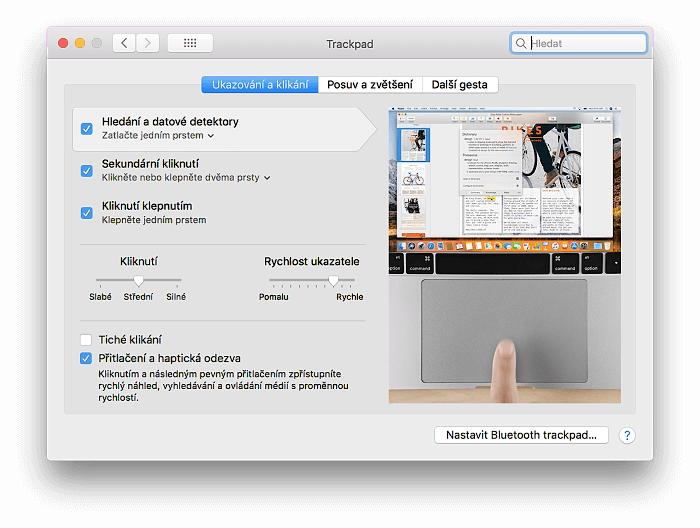
Look up & data detectors: This option lets you quickly look up words or carry out quick actions with a certain type of data, such as dates or addresses. You can choose between Force Click with one finger and Tap with three fingers.
Secondary click: Tick this box and choose Click with two fingers, Click in bottom right corner or Click in bottom left corner to set which gesture will replace a secondary click (a click with the Ctrl key held down) on items on the screen.
Tap to click: If you select this option, tapping the trackpad with one finger will do the same as a click.
Tracking speed: Drag the slider to set how fast the pointer moves across the screen.
Silent clicking: With this option you can turn off the clicking sound on a Force Touch trackpad.
Force Click and haptic feedback: By force clicking an item on a Force Touch trackpad you can trigger an action. (To use the Force Click gesture, simply press down on the trackpad with your finger until you feel a deeper click.) For example, if you force click a file in the Finder, it's displayed in a Quick Look window. If this box is ticked, you'll also feel haptic feedback when aligning objects in some apps, such as Preview.
The settings for the trackpad's behaviour are split into three tabs. Don't forget to go through all of them.
The second tab of the settings holds the scrolling and zooming behaviour. More important, though, is More Gestures, which shows you how to swipe between apps and how to bring up Notification Centre, Mission Control, Exposé, Launchpad or the desktop without having to hunt for any icon anywhere.
When you hover over an option, an animation in the pane on the right shows you what the gesture looks like. That way you can try it out straight away and remember it better.
How to use the trackpad on a MacBook with Force Click
Force click text on a web page or in a Mail message to look up more information about it in sources such as the dictionary, Wikipedia and others. In the same way, you can force click an address to see a preview of it in the Maps app. Force clicking dates and events adds them to Calendar, and force clicking a link in Safari or Mail shows a preview of that web page right in the window.
When writing an email that has an image or a PDF document attached, you can force click the attachment to turn on Markup. Force click a conversation in the sidebar of the Messages app to see its details and attachments. Force click a friend's token in the chat header to show a pop-up with their contact card. Force click a reminder to see its details; do the same on a calendar event and you'll see its details too. Force click a meeting attendee to show a pop-up with their contact card.
If you have an animated map or globe in the iMovie timeline, you can force click the map or globe to open the Style menu. The fast-forward and rewind buttons in iMovie and QuickTime are pressure-sensitive (in the same way, when browsing photos in an Album or a Moment, you can press harder to move through the pictures faster). This lets you speed up and slow down fast-forwarding and rewinding. The gesture is also widely supported by GarageBand, where you can use it to create new regions, notes, automation points and so on.
More Force Touch trackpad features
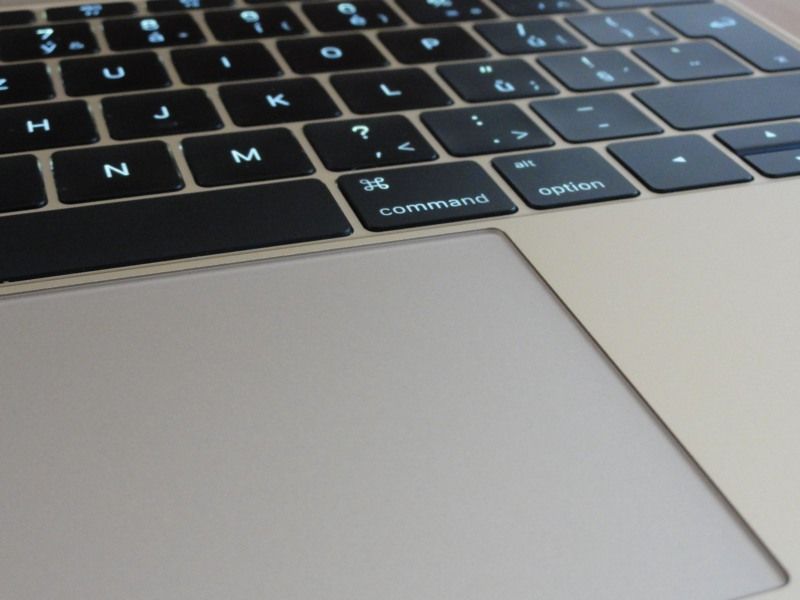
Thanks to haptic feedback, the Force Touch trackpad also lets you know about the actions you're carrying out. When you drag a video clip in iMovie to its maximum length, you'll feel feedback as you reach the end of the clip. Add a title and you'll feel feedback when the title snaps to the beginning or end of the clip. The alignment guides give subtler feedback too when you crop clips in the Viewer. You'll also feel (haptic) feedback when zooming in on maps or rotating them.
When the MacBook, or an accessory such as the Magic Trackpad 2, is switched off, you can't press it at all. That's because there's no physical feedback of any kind here; everything is handled by the haptic (vibration) motor.
Some of the examples of what you can do with a force click only work when you have the Force Click with one finger option turned on. You can turn it on or off in the Point & Click pane under Look up & data detectors. On Mac notebooks made before 2016, you can also turn off the trackpad's click sound by selecting the Silent clicking option.