
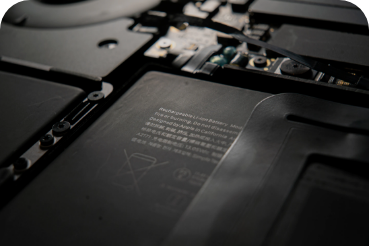
How long will your MacBook last, and how can you extend its lifespan? The battery plays a major role in both the battery life and the lifespan of a MacBook. With proper care of the battery, you can extend your MacBook's lifespan considerably. And even when the computer starts running out of power sooner than it should, that doesn't yet mean it belongs on the scrap heap. Replacing the battery brings a MacBook back to life, and the price is reasonable. How to look after your device properly and when it's time to replace the battery – that's exactly what we answer in this article.

Quick navigation:
Battery life vs lifespan
How to check the condition of your MacBook battery
Battery replacement
How to save battery
Battery life versus lifespan
These terms are often confused.
Battery life
is the length of time a device runs before it needs to be recharged.
Long battery life is also one of the main benefits of Apple's portable computers. The American company knows this very well, which is why, when it unveils new models, it never forgets to mention that its MacBook will get you through a full working day on a single charge. How long do the individual models last?
MacBook and MacBook Pro battery life
- up to 10 hours of wireless web browsing or iTunes film playback
- up to 30 days of standby time
MacBook Air battery life
- up to 12 hours of wireless web browsing and 13 hours of film playback
- up to 30 days of standby time
That's the battery life of new devices; with an older machine you naturally won't get that much. The battery inevitably degrades with use over time.
Lifespan
is the length of time a battery works before it needs to be replaced.
Battery lifespan is measured in cycles. A cycle is one complete discharge and recharge of the battery. According to Apple, a MacBook will last 1,000 cycles and still deliver 80% of its original battery capacity. That naturally means the device will keep going for longer, but its battery life will decrease accordingly.
How to check the condition of your MacBook battery - cycle count
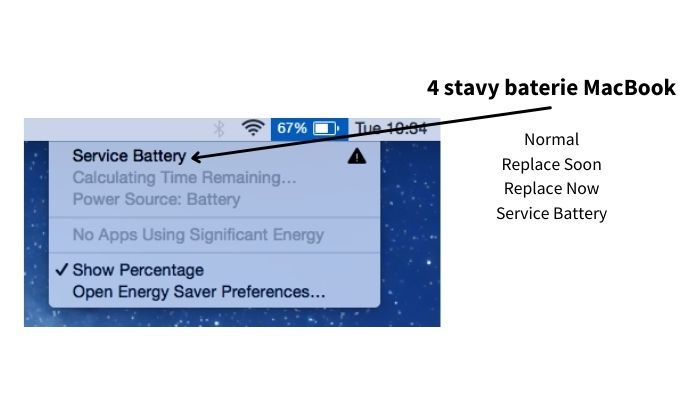
You can check the battery's condition quickly and easily - by clicking the battery icon at the top right of the screen. The very first line shows one of 4 possible battery conditions. If it says "Replace Soon" or "Service Battery", it's time to visit an Apple repair shop and have the battery checked.
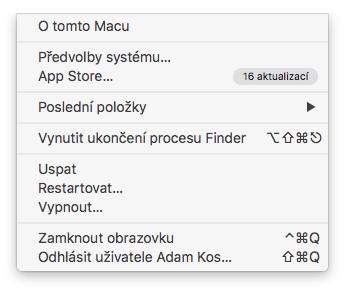
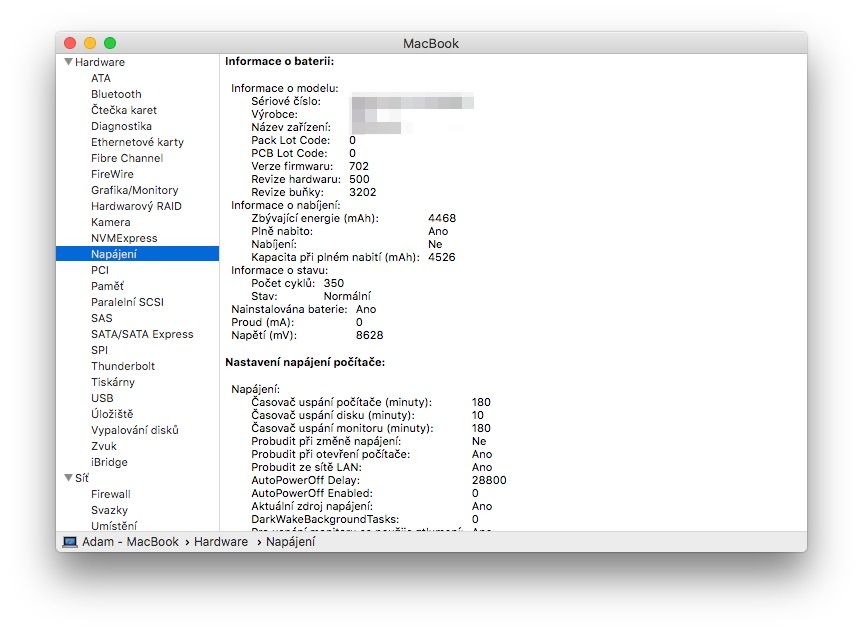
If you want to find out the exact cycle count, just click the Apple logo in the top-left corner and choose About This Mac.
There, choose System Report and go to the Power line in the menu in the left-hand column.
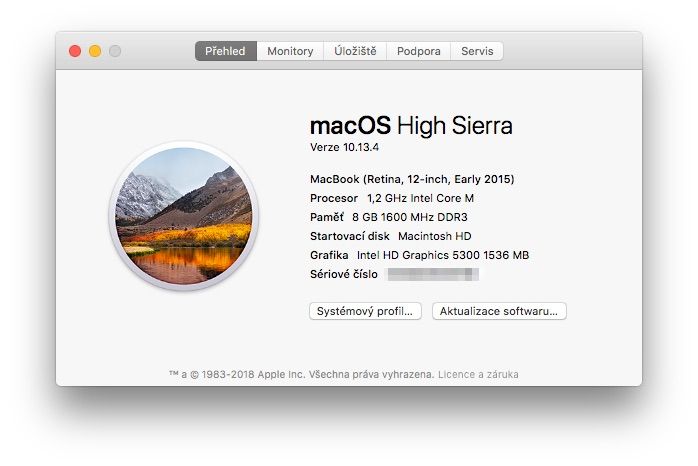
Here you can read the number of full cycles the battery has already been through, and alongside it you'll find its condition as well.
Apple's one-year warranty also covers the replacement of a defective battery. Apple therefore offers a battery replacement service for all MacBook, MacBook Air and MacBook Pro models with built-in batteries.
Replacing the battery considerably extends your MacBook's lifespan
If your MacBook reports that the battery is no longer in good shape, it's time to replace it. And it's definitely a sensible investment. A new MacBook starts at 30,000 Kč, whereas a new battery, depending on the model, can be had from just 2,400 Kč:
MacBook Air battery
- replacement from 2,400 Kč
MacBook Pro battery
- replacement from 2,640 Kč
If your current MacBook otherwise still meets your needs, investing in a new battery is definitely worthwhile.
Is it time to replace the battery? Come and see us! We're specialists in Apple products.
✆ 607 855 558
✉ info@appleguru.cz
Seifertova 683/83, Prague 3 - Žižkov
you can also conveniently send us your device by courier
How to save your MacBook's battery
When you know your device's battery life isn't what it used to be and you have no way of topping it up from the mains right now, try to make the battery go further. It only takes a few steps.
Adjusting your settings
The basic way to save battery is to reduce the demands on it:
- lower the display brightness
- turn off the keyboard backlight
- turn off the sound
You can do all this using the top row of keys.
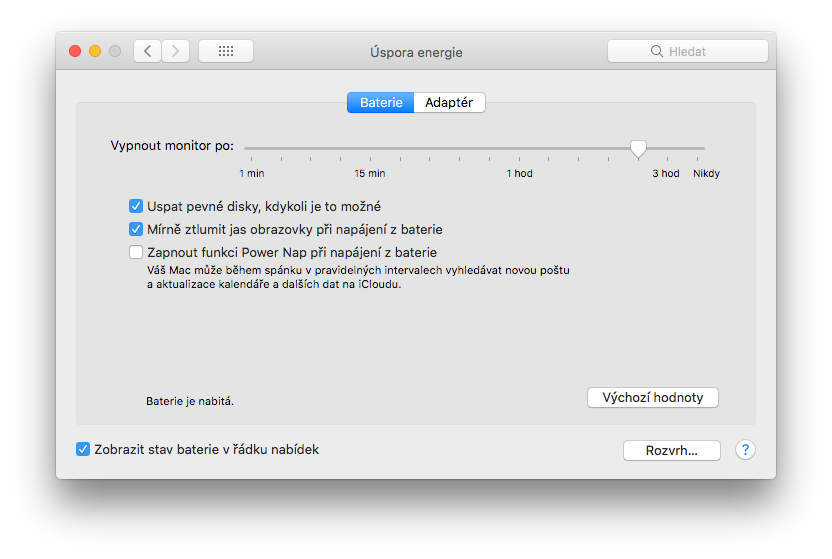
Depending on the kind of work you do, you can also invert the colours of your computer's display. Inverted colours draw less energy and so help you save it. This interface takes a while to get used to, though, and of course it isn't realistic to use it if, for example, you work with visuals of various kinds. You'll find the option in System Preferences -> Accessibility -> Display. Also remember to choose suitable settings under Energy Saver.
Optimisation
- quit all apps and processes that you don't currently need for what you're doing.
There's no need to have a graphics editor running if you're only working in a text editor. But if you know you'll need it again shortly, leave it running. It will use less energy than if it had to be launched again. That applies to all apps in general.
- turn off automatic updates
- disable Location Services
- disconnect all devices and accessories connected to your MacBook (including wireless ones).
- avoid websites that use Flash
- steer clear of Facebook – its interface uses a considerable amount of energy. The same goes for other social networks.
Watch out for Wi-Fi and heat
The Wi‑Fi adapter uses energy even when your MacBook isn't connected to a network through it. Simply turn it off in the Wi‑Fi menu in the menu bar or in Network preferences. Also disconnect peripherals you aren't using and quit apps you aren't using. Both can take up a fair share of battery capacity that you can't spare. And when charging, ideally take your MacBook out of its case, if you carry it in one – not least so that it doesn't heat up unnecessarily.
Heat, even though charging generates it, is something batteries generally aren't fond of. A MacBook works best at ambient temperatures between 10 and 35 °C. If you exceed the highest recommended value and charge the battery in that heat as well, you can easily end up with a MacBook that doesn't work, because it will first have to cool down before it can be used again. Do be very careful about this, though. Sub-zero temperatures don't destroy battery capacity, whereas extreme heat does. You could easily reduce the battery's capacity permanently, and you certainly don't want that.
Updates
Your MacBook should always be running the latest version of macOS. When the computer is connected to the internet, macOS automatically checks for software updates every week. Installing them can fix numerous system bugs that only showed up after the system had been in use for some time, and so, for example, prevent the battery from draining faster. It's also worth updating individual apps, though, as their developers may be continually optimising them and reducing their energy demands.
With MacBooks, we'll advise / help you. Come and see us! We're specialists in Apple products.
✆ 607 855 558
✉ info@appleguru.cz
Seifertova 683/83, Prague 3 - Žižkov
you can also conveniently send us your device by courier