How do you update to the latest version of iOS? The procedure is simple and applies to iPhones as well as to the iPod touch and iPad tablets.
You can update in two ways:
- wirelessly or
- using a computer.
Both options have their pros and cons. In both cases, though, the first step is the same, and that is:
Back up your iPhone before updating iOS
It's rare, but it can happen that your iOS device freezes during the update, or some other unforeseen event occurs, and as a result the update doesn't finish. So that you don't lose your data in such a case, it's a good idea to have it stored somewhere, either in iCloud or in iTunes/Finder. If you don't know how, read our guide on how to back up iPhone data. All backed up? Then let's get down to it:
Updating your iPhone wirelessly
1/ automatic update
When Apple releases an update to its iOS operating system, a message about the available update automatically appears on your device's screen. After that, you have practically nothing to worry about.
You update the device by tapping Install. Or you can tap Later and choose Install Tonight or Remind Me Later. If you tap Install Tonight, simply connect the device to power before you go to bed. Your device will update automatically overnight. To be on the safe side, though, don't forget to back it up beforehand – see above.
If, however, you'd like to have this step fully in your own hands, you can start the update manually.
2/manual update
- connect your device to a power source (or have it charged to at least 50%)
- connect to a Wi-Fi network.
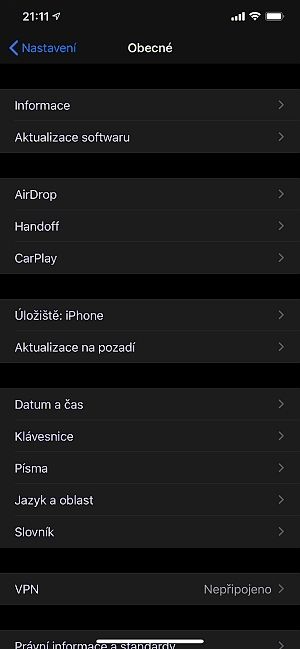
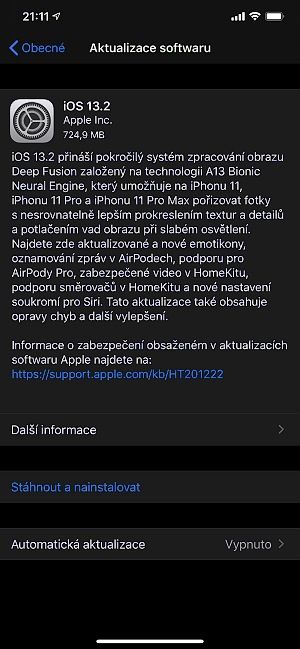
- Go to Settings -> General and tap Software Update, where you choose Download and Install.
- If a message asks you to temporarily remove some apps because the software needs more space for the update, tap Continue or Cancel.
- iOS or iPadOS will reinstall the removed apps later. This restriction is down to the need to download the installation package to the device.
GOOD TO KNOW:
- you can carry on using the device while the installation package is downloading, but no longer once the installation begins.
- whether you update the device via a computer or wirelessly, the same amount of free space will remain on it once the update is complete. So unless something unforeseen happens, in the end it doesn't matter which route you choose.
- watch out for your alarm! If you're going to update wirelessly, and especially automatically overnight, it's better to use a backup alarm for the morning. If your device freezes during the update, it won't ring in the morning.
Updating your device using a computer
- On a Mac with macOS Catalina 10.15, open the Finder; on a Mac with macOS Mojave 10.14 or earlier, or on a PC, open the iTunes app.
- make sure the computer is connected to the internet.
- connect the iOS device to the computer using the appropriate cable and, where necessary, an adapter, and locate it on the computer.
- Click General or Settings, then Check for Update, and after that Download and Update. You may also be asked to enter your passcode here.
Having trouble updating to the new iOS, or would you rather leave it to an expert? Come and see us! We're specialists in Apple products.
✆ 607 855 558
✉ info@appleguru.cz
Seifertova 683/83, Prague 3 - Žižkov