What should you do when you can't download or update apps from the App Store? We've put together an overview of the most common problems and their easy fixes, all of which you can manage entirely on your own.
The procedure is the same for all Apple devices: iPhone, iPad, iPod touch, Apple Watch, Mac computers and Apple TV. It applies to paid and free apps alike.
1. Is your internet working?
It sounds trivial, but this is one of the most common problems. Your internet connection may simply not be fast enough at that moment or in that place.
How do you find out whether you're online?
- On iOS or iPadOS, go to Settings -> Wi-Fi,
- on a Mac, go to System Preferences -> Network,
- on Apple Watch, open the Settings app and tap Wi-Fi.
You can download apps over a mobile network too, but their size must be under 200 MB.
You're connected, but downloading still doesn't work?
- Try connecting to a different network. Public networks are often blocked for this (just as they are for playing videos and the like). That's the case in cafes, public offices, schools and so on.
- You can also check your Wi-Fi connection by, say, trying to stream a video in a web browser. If it loads quickly enough, everything should be fine.
2. Pause and resume the download
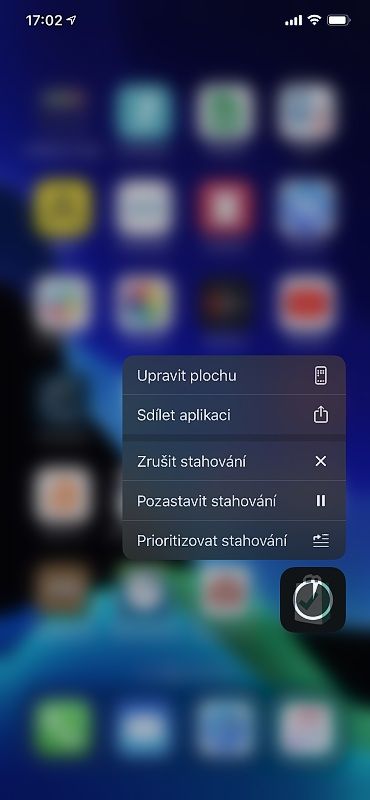
If you are connected and your internet is flying along as it should, you can try pausing and resuming the download of the app. On iOS and iPadOS, you do this by pressing firmly on the app on the Home Screen. Various options should open up. Prioritise Download means that when you're downloading several apps at once, the one you apply this action to will be downloaded first. This comes in handy particularly when restoring a device, for example if you've bought a new one or Apple's service has returned yours to you.
See image:
With the 3D Touch gesture, or by pressing firmly on the display, you bring up a menu in which you can pause the installation of the app or cancel it altogether.
You may also see options such as Resume Download, Pause Download or Cancel Download here, though. If it's stuck, choose Pause Download, press firmly on the app again and select Resume Download. You can also try cancelling the download completely, then looking the app up in the App Store again and trying to download it once more.
3. Turn the device off and on again
The tried-and-tested remedy for every problem in the IT world. It can help not only when the installation isn't running quite correctly, but also when the Home Screen shows just a greyed-out icon of the app being installed, or the icon is covered by a white grid with grey lines. You don't have to delete it straight away, though; just restart the device. Often this is also the quickest iPhone repair there is, and as far as you'll need to go. Once the device has started up again, the icon should be displayed correctly. If not, go to the App Store and download the app again.
4. Are your payment card details correct?
Your card may have expired, or there may not be enough money on it. And of course, until you change or update your payment method, you won't be able to make purchases. If you have an unpaid balance in the App Store or iTunes Store, you may also see one of the messages telling you so.
Managing payment details on iOS (see images):
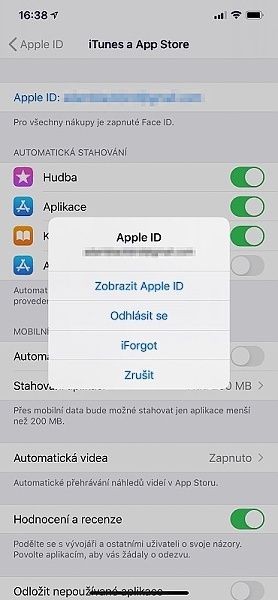
on iOS, you can manage your payment details in Settings -> your name -> Apple ID -> View Apple ID -> Manage Payments.
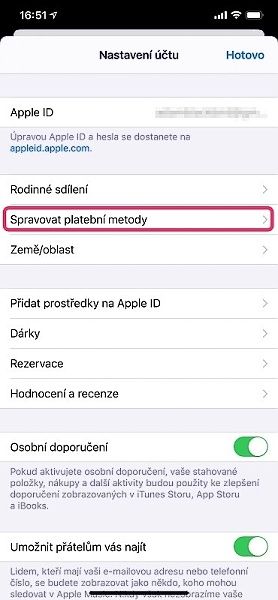
If you are connected and your internet is flying along as it should, you can try pausing and resuming the download of the app. On iOS and iPadOS, you do this by pressing firmly on the app on the Home Screen. Various options should open up. Prioritise Download means that when you're downloading several apps at once, the one you apply this action to will be downloaded first. This comes in handy particularly when restoring a device, for example if you've bought a new one or Apple's service has returned yours to you.
You may also see options such as Resume Download, Pause Download or Cancel Download here, though. If it's stuck, choose Pause Download, press firmly on the app again and select Resume Download. You can also try cancelling the download completely, then looking the app up in the App Store again and trying to download it once more.
You solve the problem by adding a new payment method or by updating the billing details for your current payment method. The unpaid balance will be charged and you'll be able to carry on buying and updating your apps, including free ones. When you view the list of your payment methods, you may see red text explaining why that payment method can't be charged.
If something is wrong with your primary payment method, the charge will be made to another payment method – that is, if you have more than one credit/debit card linked to your account. If none of your payment methods can be charged, your last order will remain unpaid. You can, however, view your purchase history, where you'll see your recent purchases and find out which orders are unpaid.
Viewing your order history (see images):
Your payment history tells you how much money you've spent on which apps and subscriptions.
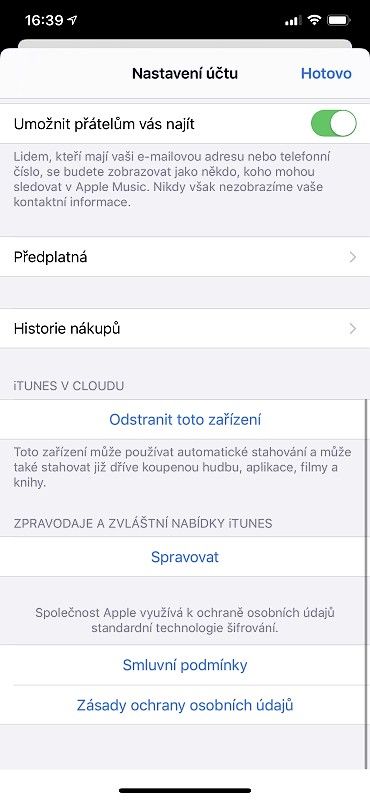
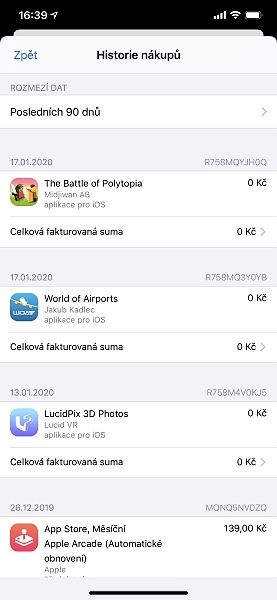
You'll find the history in Settings: tap your name at the very top and choose iTunes & App Store. Select your Apple ID there and then View Apple ID. In the menu below, all that's left is to choose Purchase History. In the previous menu you can also manage your subscriptions.
5. Check the operating system
Has a new operating system been released for your device? Installing it could solve your problems as well. If your internet isn't working quite correctly, even on your home network, let your provider know.
What to do if nothing has worked?
Have you checked all the points above and still can't download the app? Then the problem is most likely in your device and you'll need to visit a repair shop.
What is the most common fault?
On an iPhone, the most common cause is a faulty Wi-Fi signal receiver.
On a MacBook, what we deal with most often is repairing faulty Wi-Fi.
At appleguru.cz we'll be glad to welcome you and take a look at what the problem might be. We're specialists in Apple products.
✆ 607 855 558
✉ info@appleguru.cz
Seifertova 683/83, Prague 3 - Žižkov
you can also conveniently send us your device by courier
Spare yourself the extra worry – turn on automatic updates
Did our guide solve your problem? Save yourself some time for next time.
Developers update their apps constantly. One time they add new features, another time they fix old bugs, tune the app for new operating systems and so on. In the App Store you can update your apps manually, so that you have full control over which apps have been updated and what changes have been made to them. But then you can end up needlessly using old versions of apps, simply because you don't have the time to go through all those updates by hand.
Updating apps manually (see images):
On iOS, you can update apps manually by going to the App Store and tapping your profile photo in the top right.
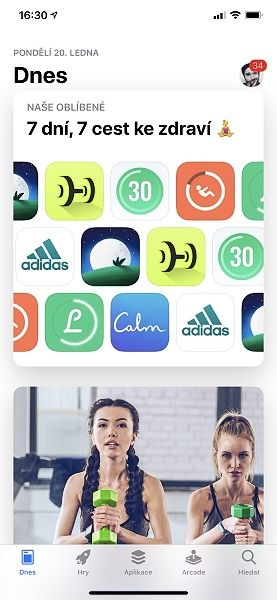
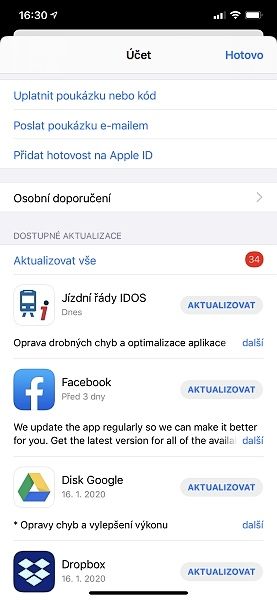
The solution is simple – you can turn on automatic updates for them. On an iPhone, iPad or iPod touch, go to Settings, scroll right up to the top and choose your name and then iTunes & App Store. Next, turn on App Updates. On a Mac, you do this by opening the App Store app and choosing App Store -> Preferences in the menu bar at the top of the screen. Then just select Automatic Updates.
Automatic app updates (see images):
If you'd like your iPhone's apps to update automatically, you can set this in Settings -> your name -> iTunes & App Store.
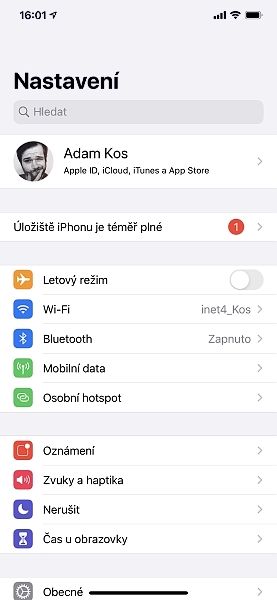
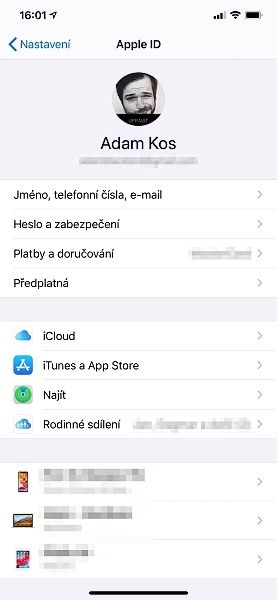
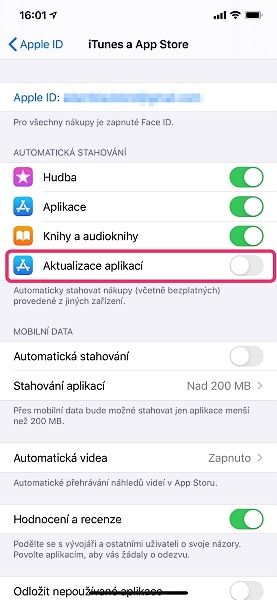
On Apple Watch, go to Settings -> App Store and turn on Automatic Updates. You can also open the Watch app on your iPhone, scroll down, tap App Store and then turn on Automatic Updates. On Apple TV HD or 4K, go to Settings -> Apps. There, just select Automatically Update Apps. When you turn automatic updates off, you'll get a notification from the App Store every time an update for one of your apps is released.
We trust that everything is now working as it should.