
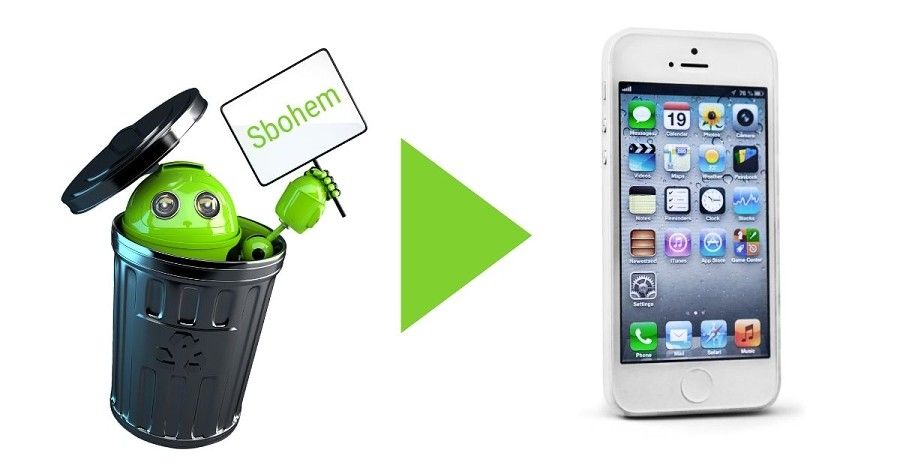
Need to move your photos, data or contacts from Android to iPhone? It can be done. We have a step-by-step guide for you. There are two ways to do it – manually, or the easy way with an app from Google Play. Let's start with the easier route, using the app:
Quick navigation:
Transfer everything using the app
Moving from Android to iOS manually
Transferring from Android to iPhone using the app – photos, videos, contacts, data
Apple has taken care of it for you. The "Move to iOS" app is available free of charge in the Google Play store (you can download it here). The app links your old Android device and your new Apple device over a direct Wi-Fi connection and transfers all your data. You can transfer from/to both phones and tablets.
What you need:
- iOS 9 or later (if you have an iPhone 11 or a newer model, you won't have any problem)
- the "Move to iOS" app downloaded (free on Google Play)
- Wi-Fi
How to do it:
- Turn on Wi-Fi on both devices. We recommend plugging both into power so that neither runs out of battery during the transfer.
- Make sure that all the content you're transferring, including what's stored on the SD card, will fit on your new iOS device. That means it must have a larger storage capacity than the Android device and its SD card combined. If it doesn't, you'll have to delete some data.
- On your iPhone or iPad, find the screen called Apps & Data
- Tap Move Data from Android (Note: if your iPhone is already set up and you're using it, choosing this step means you'll have to erase the device completely and set it up again. If you don't want to lose your new data, you can transfer the content manually – see the guide below).
- On your Android phone or tablet, open the Google Play Store and search for Move to iOS.
- Tap Install
- Once it's installed, choose Open.
- Tap Continue on both devices.
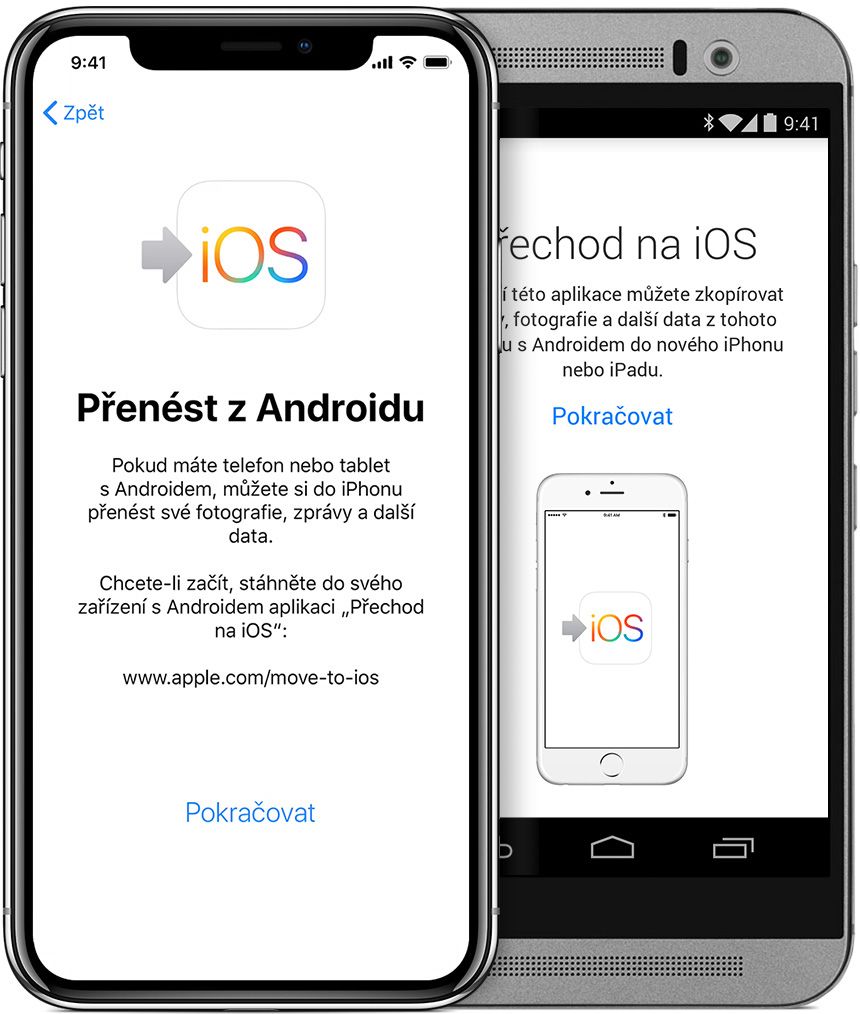
- On the Android device, agree to the terms and conditions
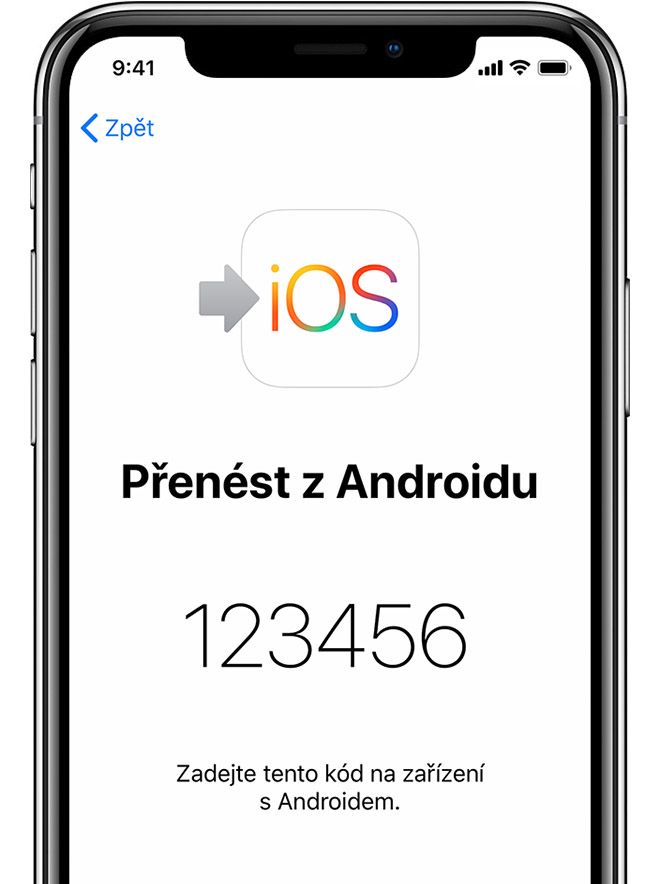
- On the Android device, enter the code shown on the iPhone or iPad. The two devices will connect over Wi-Fi.
- Choose which data you want to transfer: you can decide whether to transfer your Google account information (so you can sign in quickly), Chrome bookmarks, text messages, contacts, and your camera photos and videos.
- The transfer is in progress – it may take a while, depending on the amount of data and the speed of your connection.
- Once the progress bar on the iOS device reaches the end, go to the Android device and tap Done.
- On the iOS device, tap Continue and follow the on-screen instructions to finish setting up the iOS device
PLEASE NOTE! "Move to iOS" transfers your data. What it does not transfer:
- your apps (because they aren't compatible)
- music, books and PDFs
- your passwords
Did the transfer fail and you're not sure what to do next? Come and see us! We specialise in Apple products.
✆ 607 855 558
✉ info@appleguru.cz
Seifertova 683/83, Prague 3 – Žižkov
Moving from Android to iOS – manually
Importing e-mail
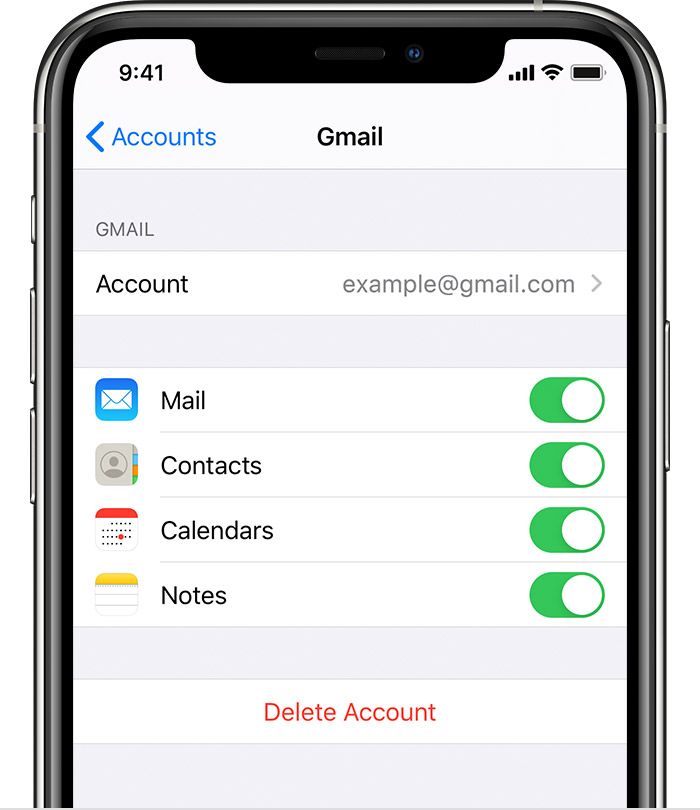
If your e-mail is with a provider such as Google, Microsoft, Yahoo or others, all you need to do is sign in to it under Settings -> Passwords & Accounts. Everything will then start downloading into the relevant app.
The contents of your mailbox, for example, are stored on the server, so as soon as you sign in they load straight into the appropriate app.
Transferring photos and videos
Photos and videos can be moved from your Android device to the iOS one using a computer. Install the Android File Transfer app on your Mac, open it and, once the Android device is connected to the computer, go to the DCIM -> Camera folder. Select the photos and videos you want to move and drag them into a folder on your computer. Disconnect the Android device and connect your iPhone, iPad or iPod touch.
On a Mac with macOS Catalina, open Finder. On a Mac with macOS Mojave or earlier, or on a PC, open iTunes. Then sync on the computer. Afterwards you'll find the photos and videos in Photos -> Albums. The transfer is, of course, simpler if you've been using an app such as Google Photos. It stores them in the cloud, and once you install it on your iPhone, all your pictures and videos will appear in it. You just need to be signed in with the same user account.
Music – music apps
If you use a music streaming app, just install it from the App Store and your complete library is on your new iOS device as well. And it doesn't have to be Spotify – Apple Music also works on Android, where you can install it from Google Play.
Music – "physical" files
Downloaded music has to be synced with a computer. Here, too, you'll make use of Android File Transfer, which lets you save music from your Android device to a Mac (on a PC, do it the usual way). On most devices these files will be in the Music folder.
Even when you transfer music manually, a computer has to act as the go-between for the Android and iOS devices.
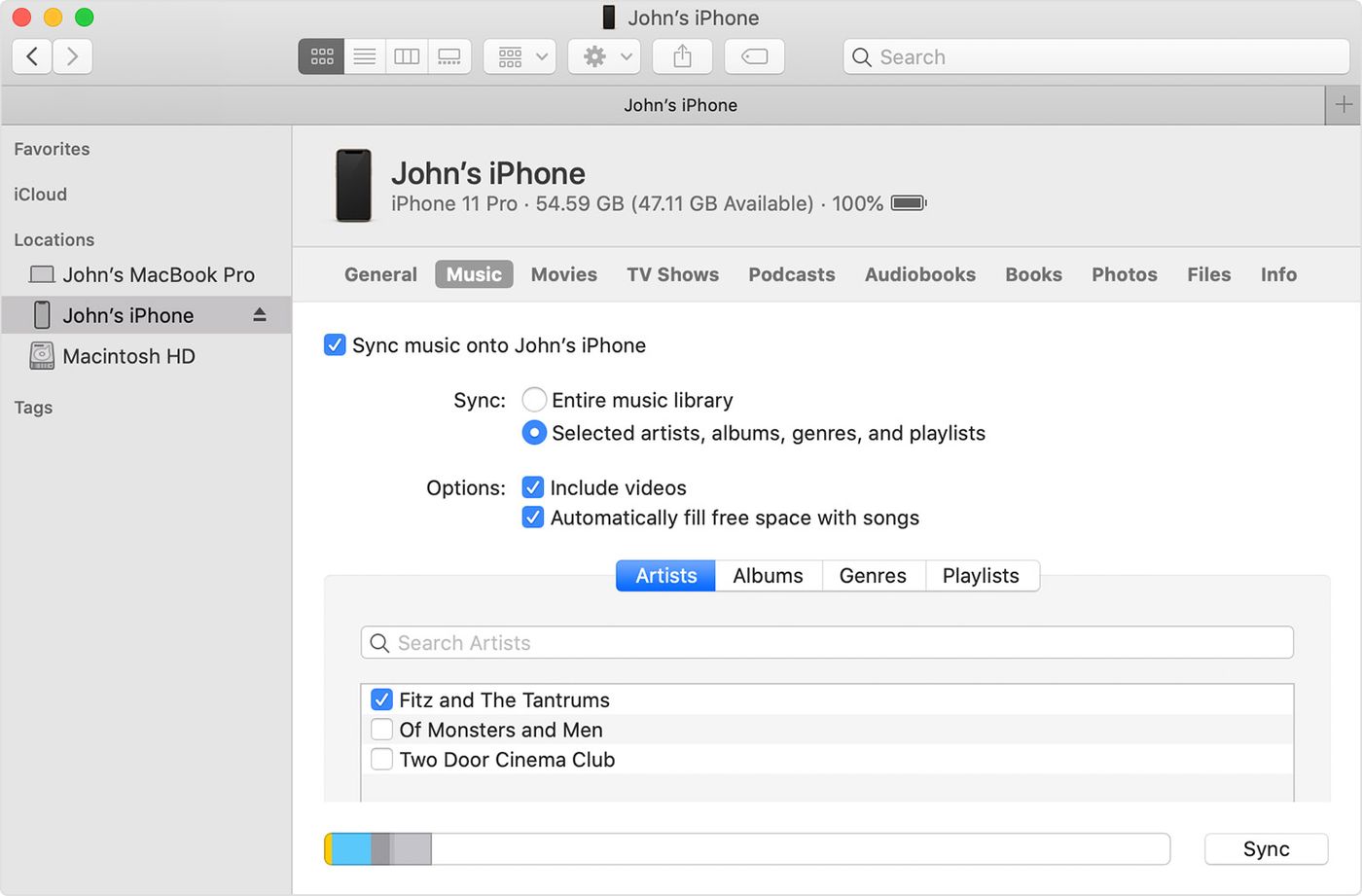
On a Mac with macOS Mojave 10.14 or earlier, or on a PC, open iTunes and click Songs. On a Mac with macOS Catalina 10.15, open the Music app. Open the folder where your songs are saved on the computer and drag them into the Songs section of the Music app or your iTunes library. Connect your iPhone and click Music. Here you can sync your whole library or, of course, select only the songs and artists you've just added. Click the Sync button to copy everything to the iOS device.
E-books
You can import these to your iPhone manually, or use them in apps such as Kindle, Nook, Google Play Books and others, provided that's what you did on Android too. So if you want to use your books in a particular app, go to the App Store, download the app and sign in with your username and password. ePub books and PDF documents can also be transferred manually, once again with the help of a computer.
With the Android device connected to the computer, find all your books and PDF files – they'll probably be in the Documents folder. Again, use Android File Transfer to download them to your Mac. After connecting your iPhone to the Mac, drag the books and PDF documents into the Books app; on a PC, drag them into iTunes. As before, in Catalina open Finder, in Mojave or earlier or on a PC open iTunes, and sync whatever you need. You'll then find the ePub books and PDF documents on your iPhone, iPad or iPod touch in Books -> Library.
Documents
If you store your documents in the cloud or another service such as Dropbox, Google Drive or Microsoft OneDrive, that is of course the most convenient way to get them onto your new iPhone – or any other device, for that matter. All you need to do is download the relevant app from the App Store and sign in. You can also work with all your files in one place in the Files app, which stores data in Apple's iCloud. The Pages, Numbers and Keynote apps can work with various file types, including Microsoft Office documents.
The way to get all your documents from Android to iOS follows the procedures above – connect the Android device to the computer, download the documents via Android File Transfer and then, once the iOS device is connected, copy them to the iPhone, iPad or iPod touch via Finder or iTunes. If you use apps such as Facebook, Instagram, Snapchat, WhatsApp and others on Android, you will always find them in the App Store on iOS. Once you've installed them and signed in with your username, you'll find all the data they held before. Moving from Android to iOS is therefore fairly smooth and trouble-free, because all the data you need comes with you.