Apple offers two ways to back up your device so that you don't lose your data.
Quick navigation:
1. Backing up with iCloud
2. Backing up with iTunes
Everyone should use at least one backup method, because you never know what might happen. All it takes is getting locked out of your phone, for example (and your child can easily manage that in 6 attempts). If you're unlucky enough to forget your passcode, you will be able to unlock the device, but the data will be lost.
Losing your data is often more painful than losing the device itself. And if your device breaks, it's a good idea to make a backup before you take it in for repair as well. No iPhone repair shop can guarantee that you won't lose your data when your phone, tablet or other device is repaired, and only some of them are able to recover your data for you.
Where should you back up to? iCloud or a computer? Both have their advantages and disadvantages.
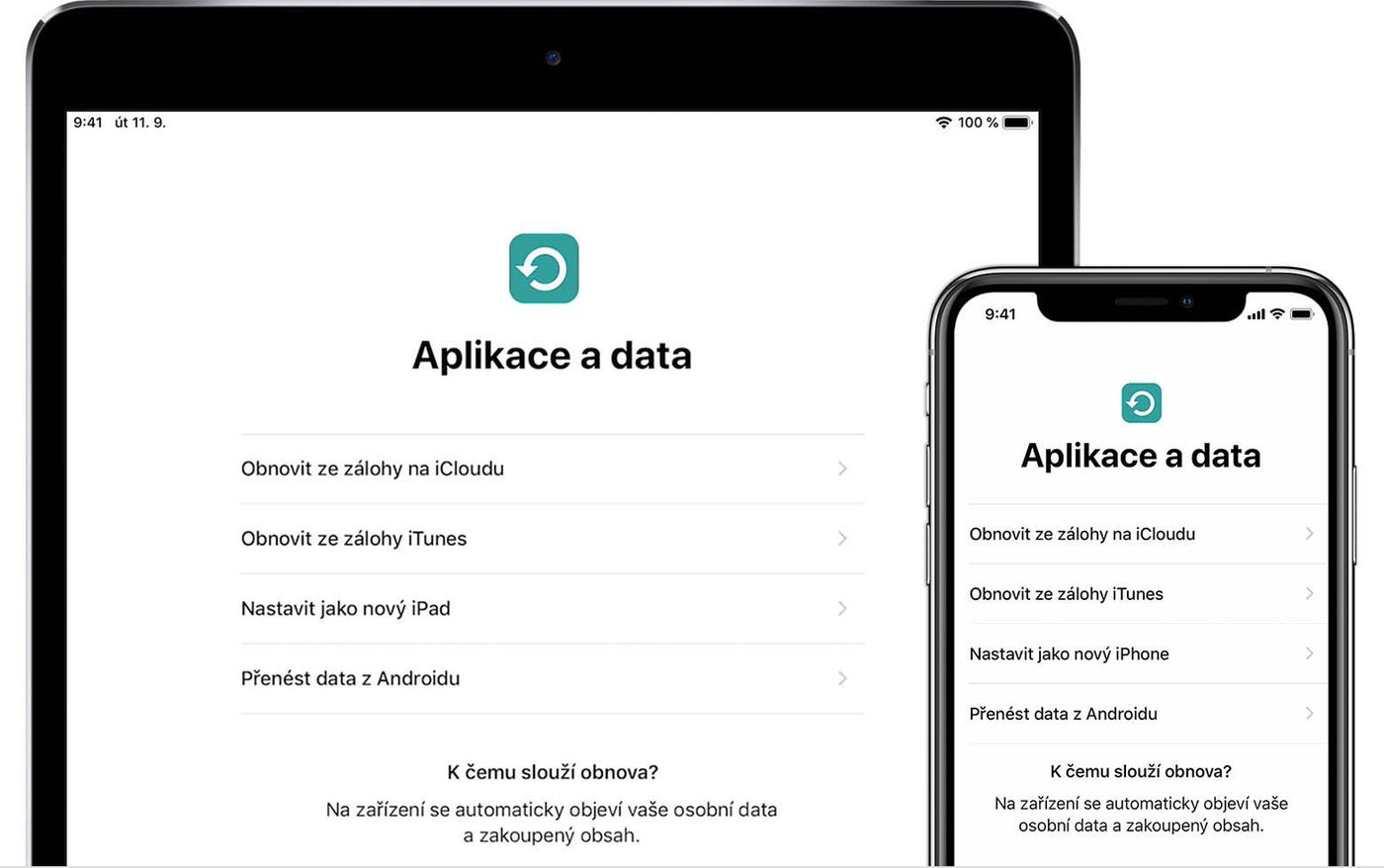
A backup has added value too: when you replace your device, you can transfer your data from its backup to the new iOS device. Essentially you have two options for where to keep your data. One is iCloud, the other is your computer via iTunes. You're welcome to use both, though, if you need more than one backup.
1. Backing up to iCloud
Advantages:
- With iCloud you get 5GB of space for free, and with a subscription you can go all the way up to 2 TB.
- All backups are encrypted.
- It's available anywhere you have access to Wi-Fi.
Anywhere you have a Wi-Fi connection, you can back up your device to iCloud. You don't need to connect the device to a computer, and you don't even need to be at home. That means you can back up or restore practically anywhere. It's certainly a convenient solution for anyone who doesn't own a Mac. You can also back up to a Windows computer, though; you just need to install iTunes on it from the Windows Store first.
iCloud backups include nearly all the data and settings stored on your device. They don't include data that's already stored in iCloud, however. That covers contacts, calendars, notes, iCloud Photos, iMessages, voice memos, text (SMS) messages, multimedia (MMS) messages and Health data, as well as data stored in other cloud services such as Gmail or Exchange mail, Apple Pay information and settings, Face ID and Touch ID settings, and iCloud Music Library or App Store content.
How to back up your iPhone, iPad and iPod touch with iCloud
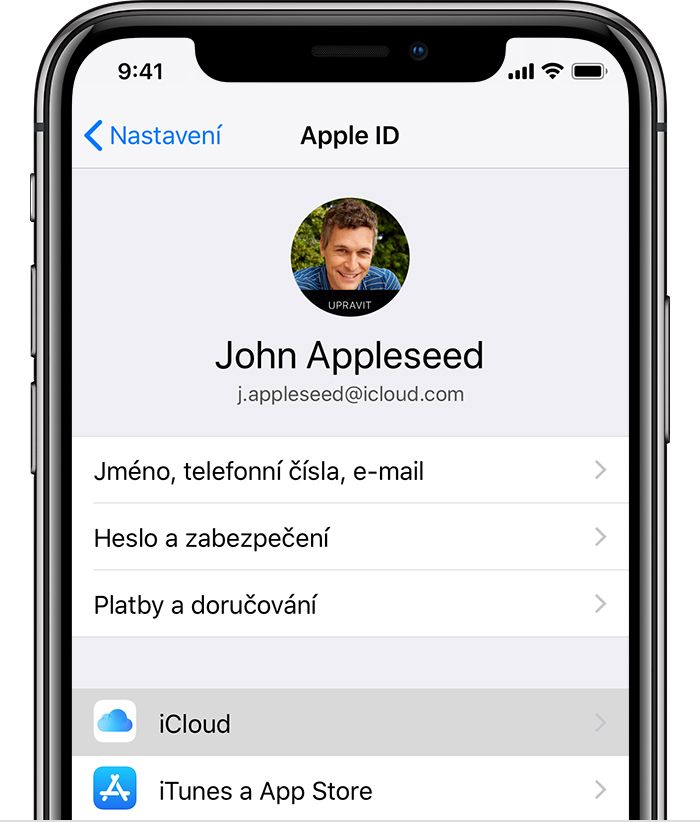
Because backing up to iCloud depends directly on a Wi-Fi connection, you need to find an active network. At home that certainly won't be a problem. Then go to Settings, select your name at the very top and tap iCloud.
Backing up to iCloud is as convenient as it gets. You don't need any other device to do it.
Next, tap iCloud Backup and choose Back Up Now. Don't disconnect the device from the Wi-Fi network until the process has finished, otherwise the backup won't be complete. You can follow the progress and confirm that the backup has finished by going to Settings on your iPhone-> your name -> iCloud -> iCloud Backup. Under Back Up Now you'll see the date and time of the last backup.
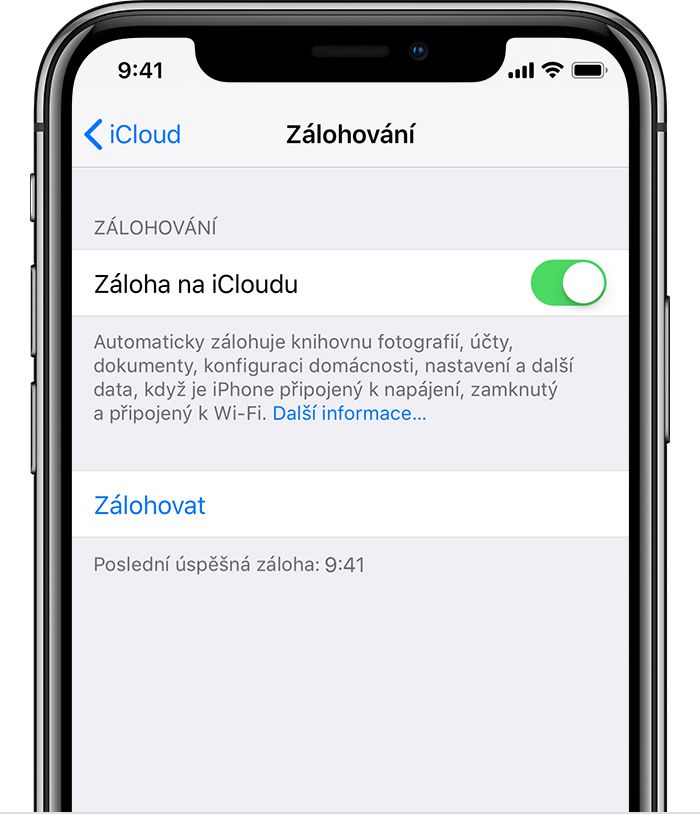
You can back up manually, but if you set up automatic backups, you won't have to think about it again.
So that you don't have to worry about regular backups at all, you can turn on automatic backup to iCloud. The backup then runs every day, with no action needed from you. It usually happens at night, though, when your device is connected to Wi-Fi and to a power source and its display is off (in other words, when you're not using it).
The 50GB plan will be enough for most people, but the 200GB one can be shared with your whole family.
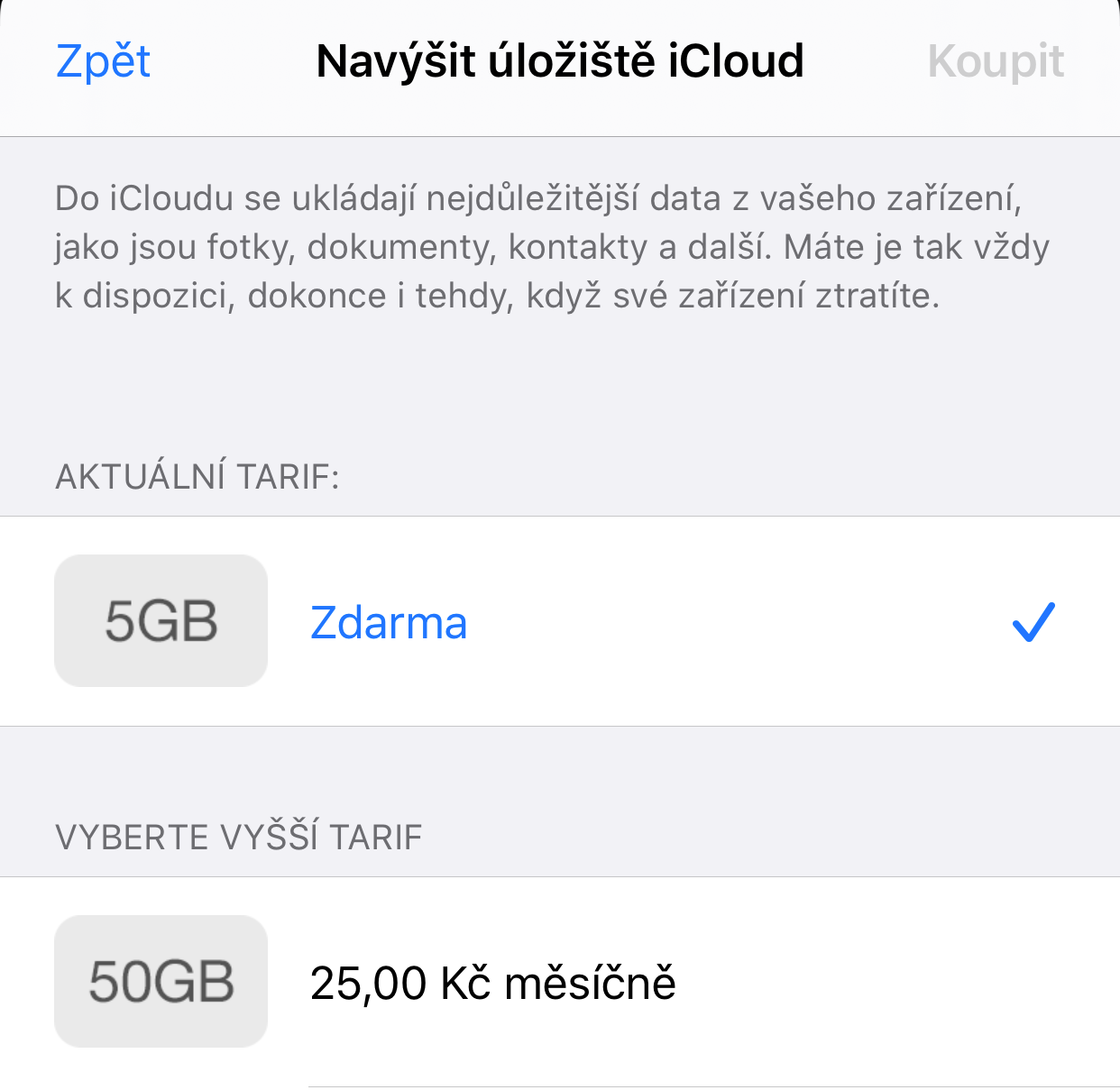
To back up to iCloud you naturally need enough space there. When you sign up, you automatically get 5GB of space for free. If you need more room, you can buy it on your iPhone, iPad, iPod touch or Mac. Plans start at 50 GB for 25 Kč a month, but you can get as much as 2 TB for 249 Kč a month.
2. Backing up to iTunes
Advantages:
- Space is limited only by the free storage on your computer.
- Backups are encrypted, but if you don't want them encrypted, they don't have to be.
- All backups stay with you; they aren't sent anywhere.
- You don't need an internet connection to back up.
On a Mac or PC you can back up your device to iTunes. You do need a computer and the iTunes app for that. What you don't need is an internet connection. An iTunes backup includes nearly all of your device's data and settings, except for the items listed in the Backing up to iCloud section, content from the iTunes Store and App Store or PDFs downloaded directly to Apple Books, and content synced from iTunes, such as imported MP3s or CDs, videos, books and photos.
How to back up your iPhone, iPad and iPod touch with iTunes
In any case, it's important to have an up-to-date version of iTunes. If your iOS is newer than your iTunes, the app may not recognise your iPhone, iPad or iPod touch correctly. Particularly when you're travelling and have no internet connection, you'd have no way of backing up a device running the newer system. So always keep your desktop operating system and its apps as up to date as possible.
To back up your device to iTunes, open the app and connect the device to your computer with a cable. If a message asks for your device passcode or asks whether to trust this computer, follow the onscreen steps. When your iPhone, iPad or iPod touch appears in iTunes, select it.
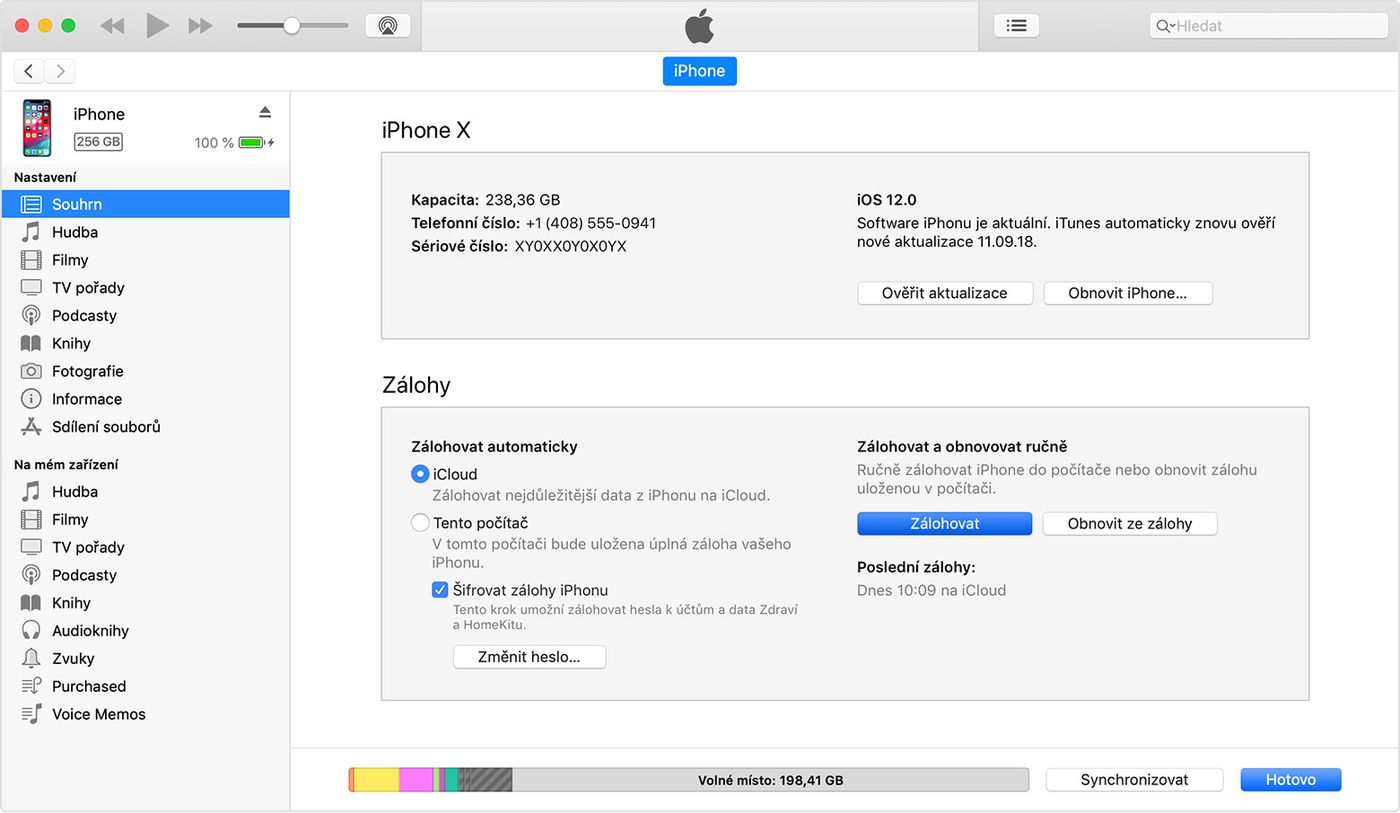
If you also want to save your Activity data and Health data from your iOS device or Apple Watch, you have to encrypt the backup. Tick the Encrypt local backup box and create a password you won't forget (write the password down and keep it somewhere safe, because without this password you won't be able to restore your iTunes backups). If you don't need to back up your Health and Activity data, you can make an unencrypted backup. Simply click Back Up Now.
iTunes is used not only to back up your device to a computer but also to transfer data from the computer to the device.
When the process ends, you can check on the Summary screen in iTunes whether the backup was created successfully. Just look for the relevant date and time under Latest Backup. You'll find all the backups of your iOS and iPadOS devices here – not only those of iPhones and iPod touches, but iPads too.
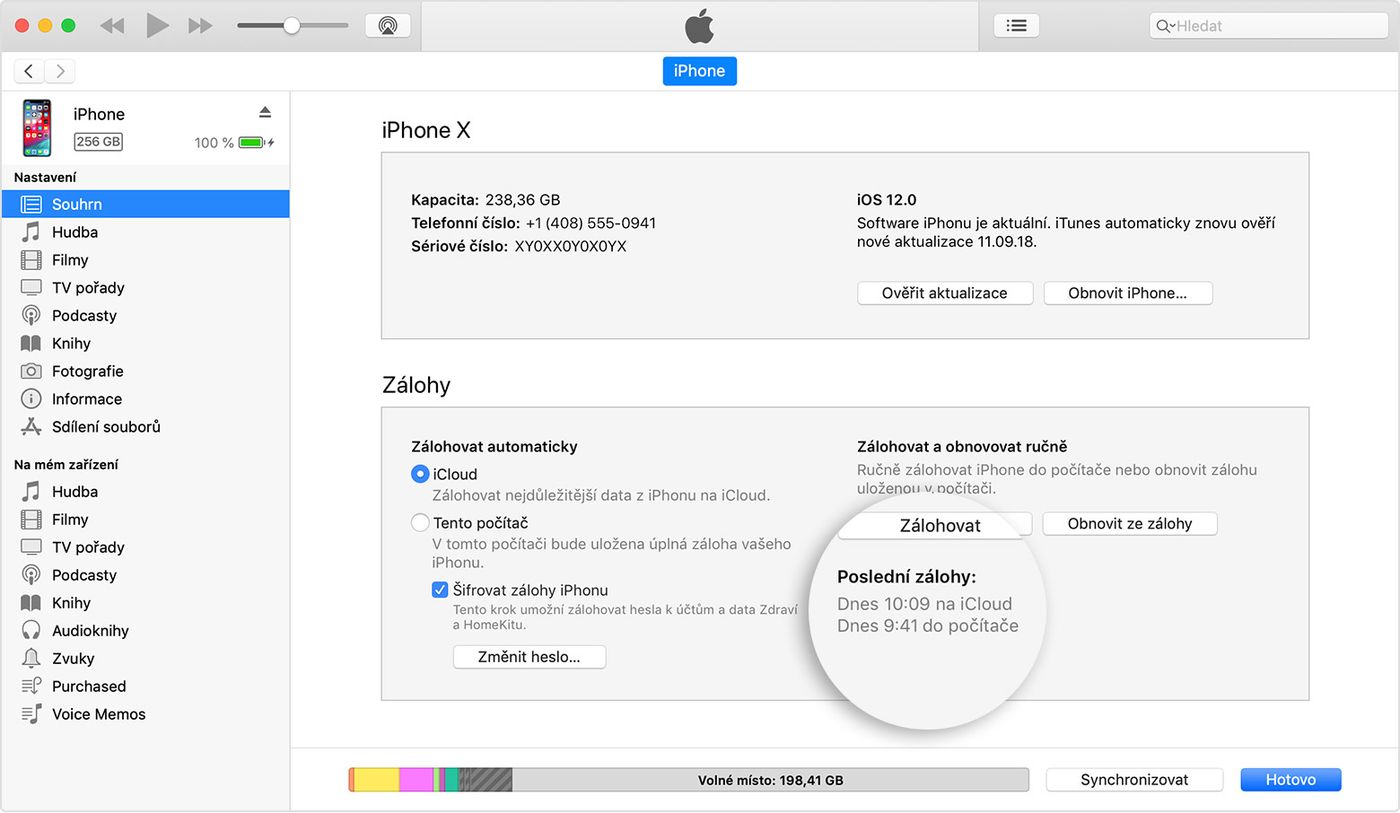
You can also use iTunes to update your device to newer software. For restoring, it then keeps the backups from each version of the operating system.
If you're thinking of restoring a device from a backup of a different kind of device, for example using an iPad backup on an iPhone, it is possible, but some types of content won't transfer. These include photos, messages, attachments in messages, voice memos and apps that aren't compatible with the device you're setting up. For example, apps that are compatible only with iPad won't transfer to an iPhone.
Did your backup fail, or have you already managed to lose your data? Come and see us! We're specialists in Apple products.
✆ 607 855 558
✉ info@appleguru.cz
Seifertova 683/83, Prague 3 - Žižkov